What two-device setup gets you
One license covers as many devices as you want at no extra cost. Two-person booth where each person can ring their own sales. Backup device in case one battery dies mid-event. Phone for quick adds while a tablet stays on the cash table.
Each sale is tagged with the device name that rang it up, so reports can answer "who sold what." Both devices sync to the same Google Sheet, so totals and inventory stay consistent (with a few caveats covered below).
Setting up the second device
On the FIRST device: open the Setup QR
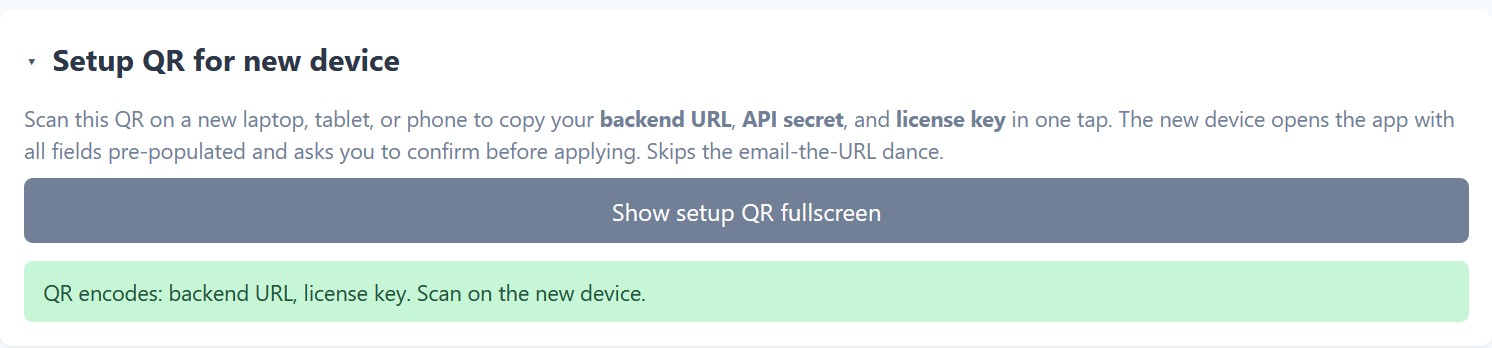
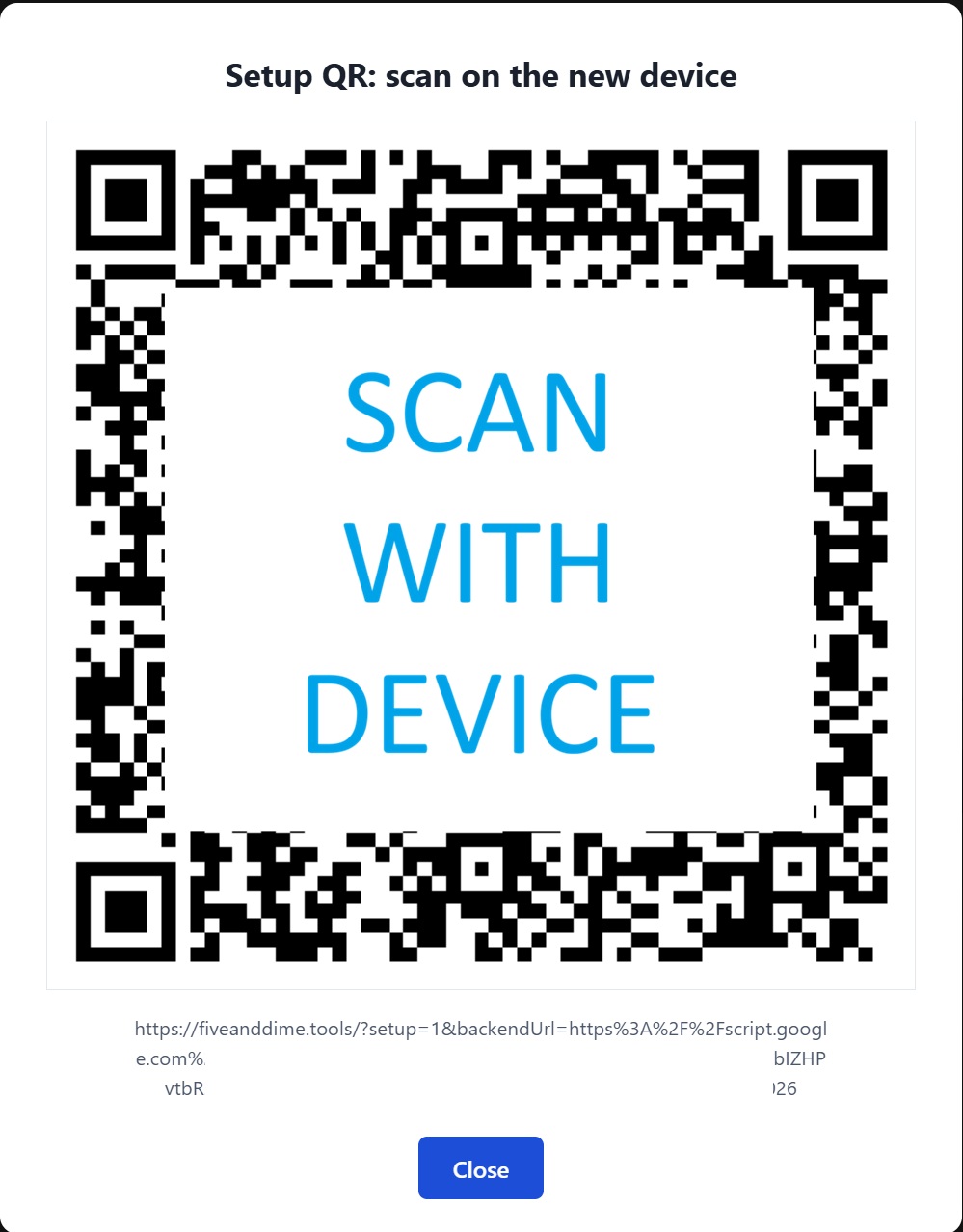
Open fiveanddime, go to Settings, and find the Setup QR for new device section. Tap Show setup QR fullscreen. A QR code fills the screen.
The QR encodes everything the new device needs to talk to your spreadsheet: your license key, your API secret (if you've set one), and the backend connection. Together, those are enough to get a new device fully configured without any typing.
On the SECOND device: scan the QR
Open the camera app on the second device. Point it at the QR. A link appears: tap it. The fiveanddime app opens with all the settings pre-populated and asks you to confirm before applying. Tap confirm.
The second device now has the same backend URL, API secret, and license key as the first. No typing, no emailing URLs to yourself, no welcome-email digging.
Set a unique Device Name on the second device
This part is manual. On the second device, go to Settings → Settings (the top section) → Device Name. Type a name that's different from the first device's name.
Examples that work well:
- First device: "My iPhone" → Second device: "My iPad"
- First device: "Booth Main" → Second device: "Booth Helper"
- First device: "Front" → Second device: "Back"
Anything works as long as the names are different. Sales are tagged with the device name, so reports can later filter to "what did the Helper device sell."
If both devices have a blank Device Name, sales from both will be tagged with the same empty string and you lose the ability to tell them apart in reports. Always set a name on each device.
On the second device: pull from backend
Still in Settings, tap Pull from Backend Now. The second device pulls down your catalog, events, categories, bundles. After ~10-20 seconds, the Sale view shows your full catalog and you can start ringing sales.
Day-of-event workflow
Both devices open to the Sale view, both point at the same active event. You ring sales on your device, your helper rings sales on theirs. Each sale records independently against the same event.
At end of event, when you tap Post event sales to inventory, the math aggregates sales from both devices together. Inventory decrements correctly regardless of which device rang each sale.
What "sync" actually means
fiveanddime is not a real-time multiplayer app. "Sync" means different things for different kinds of data; some sync nearly instantly, some on a 30-second poll, some only when you tap a button. Knowing which is which keeps expectations honest.
Sales: when you tap Complete sale on a device, the sale records to that device's local storage immediately, queues to send to the backend, and uploads within seconds when online. The other device doesn't see it right away; its Events tab refreshes itself every ~30 seconds with whatever's new on the backend. So Device A's sale shows up in Device B's Events tab within about half a minute (assuming both are online). If offline, sales queue locally on each device and upload when reconnected; the other device sees them after its next poll.
QuantityOnHand (inventory): doesn't change with sales at all. The number on each product only moves when you run end-of-event posting (Events tab → Post sales to inventory) or do an off-cycle adjustment. So there's nothing to "sync" between devices during an event for inventory; both devices show the same QuantityOnHand because the underlying numbers haven't moved since the last post. After posting at end of event, both devices need to do a Pull from Backend on their next Settings open to refresh.
Catalog, events, categories, bundles: pulled from the backend on demand via Settings → Pull from Backend Now. NOT periodic. If you add a product, edit a price, or set up a new event, the other device needs to do a Pull from Backend before it sees the change.
Per-event running total (the banner above the cart): aggregates across both devices, refreshed on the 30-second poll. So "how am I doing today" reflects both devices' contributions within half a minute.
Sales are events that just accumulate. Adding more of them is always safe. QuantityOnHand is a running total that changes. If both devices tried to decrement it on every sale, you'd hit "did Device A or Device B sell the last one?" problems, voids would have to re-add the stock back, and end-of-event posting wouldn't be safe to re-run. Doing the math once at end-of-event sidesteps all of that.
Practical implications
Each device has its own cart. If you start ringing a sale on the front device and the customer walks to the back, the helper's cart isn't automatically aware of your in-progress sale.
When you do want to pass a cart between devices: tap 📲 Hand off on the cart (in the same row as Park cart and Abandon). You'll get a 4-digit code. Read it to whoever's on the other device, they tap 📥 Pick up handoff at the top of their Cart panel and type the code. The cart arrives intact with items, discount, and tip. Codes are good for 4 hours and can only be used once.
The handoff buttons are off by default (solo vendors don't see them). Turn them on by adding CART_HANDOFF_ENABLED = TRUE to your spreadsheet's Settings sheet, then Pull from Backend on each device that needs the controls. Full walkthrough in the cart handoff tutorial.
You can't see what your helper is ringing in real time. Their sales show up in your Events tab within ~30 seconds after they hit Complete, but during the active sale itself, each device is its own world. Rarely a problem in practice; just be aware that "what did my helper just sell?" requires waiting for the next poll.
Set a new price in Products_Master mid-event? Both devices need to tap Pull from Backend Now in Settings before the new price shows up. The catalog is not auto-refreshed. (Sales already in-flight at the old price are fine; sales rung after the pull use the new price.)
What works correctly across both devices
- Sale recording. Each device sends its sales to the same Google Sheet. Both contribute to the same event's sales.
- Catalog reads. Both devices see the same products and prices, assuming both have pulled recently.
- Event selection. Both devices can pick the same active event.
- End-of-event posting. When you run it from either device, it aggregates sales from both and decrements inventory correctly.
- Reports. Per-event P&L, per-state tax, top sellers, all roll up both devices' sales.
Practical tips
- Each device needs its own internet (or accept that one will queue offline and sync later). A shared mobile hotspot from one phone works fine if cell signal is good.
- Same Google login is fine. Both devices can use your same Google account; the app doesn't require per-device accounts.
- Power matters. Two devices = two batteries to manage. Bring a charging brick.
- If you add a third device later, repeat: Setup QR from any configured device → scan → pull → set unique Device Name. No license limit.