How it works (the big picture)
Each product in Products_Master has a QuantityOnHand column. That number is what the app uses for low-stock badges, stock-at-a-glance, and inventory reports. Sales at the booth do not decrement QuantityOnHand in real time. Instead, each sale records a line item, and the line items accumulate.
You batch the decrement after the event with end-of-event posting: one tap, the math runs, QuantityOnHand goes down by the total quantity sold per SKU. Between events, you handle the non-sale changes (damage, samples, cycle counts) with the Inventory adjustment form, and the additions you've made (new stock) with the Production sheet.
Booth events are offline-prone and frantic. If the app tried to update QuantityOnHand on every sale, every offline sync would have to re-reconcile a thousand tiny decrements. Batching at end-of-event makes the math safe to re-run, correct under sync delays, and easier to audit. Voided sales drop out automatically.
End-of-event posting
The routine after every real event:
Open the Events tab
Tap Events on the bottom nav. Make sure the dropdown filter at the top is set to the event you just finished (or "All events" if you want to see everything; the post button appears per-event regardless).
Scroll to the post-event section
At the top of the Events view (above the sales list), there's a Post sales to inventory section for the selected event. It shows a brief summary: how many sales, total quantity sold, whether any are voided.
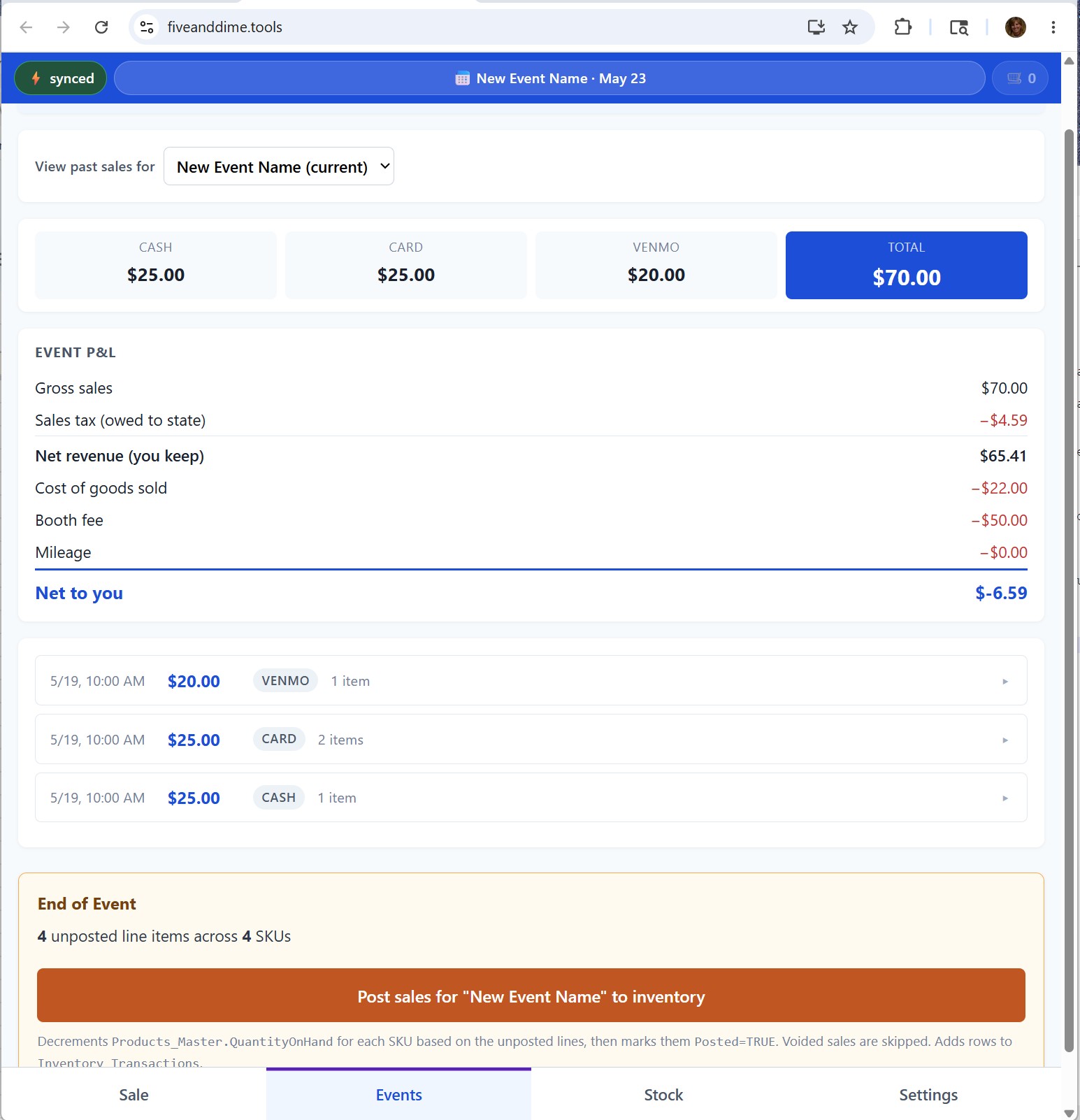
Tap Post sales to inventory
The app sends a post-event request to your backend. The script aggregates line items by SKU, subtracts the totals from QuantityOnHand, and writes the per-SKU change to Inventory_Transactions as the audit trail. Usually takes a few seconds.
When it's done, the section flips to a "Posted" state showing when posting happened. Safe to re-tap if you have to (re-running won't double-decrement) but normally once per event is the whole story.
If the active event is marked IsTestEvent=TRUE, the post button shows a "test event, posting blocked" notice instead. Practice sales don't move real stock. Switch to a real event to post.
If you ring sales offline at the booth, they queue locally until you reconnect. The Sync chip in the top strip shows a number when items are pending. Make sure that number is 0 before you post end-of-event, otherwise some sales might post twice (once before they sync, again after). The simplest habit: wait for a known wifi connection (hotel, coffee shop, home) and let the queue drain fully before tapping post.
If your unposted-line summary shows "across 0 SKUs" (or fewer SKUs than line items), it means some or all of those sales were manual items (rung with the + Add manual item button rather than a tap on a catalog product). Manual items have no SKU, so there's no Products_Master row to decrement against.
Posting is still safe in that case — it just marks the manual lines as Posted=TRUE (a bookkeeping checkbox so the reminder clears) and quietly skips the inventory math. If the event was a mix of catalog and manual items, posting decrements the catalog SKUs normally and leaves the manual ones alone. Either way, tap the button to clear the reminder. Reports include both kinds of sales whether you post or not.
Off-cycle adjustments (damaged, lost, sample, etc.)
Sometimes inventory moves outside of a sale. A piece broke. You gave away a sample. You used one yourself. Someone shoplifted. fiveanddime's Inventory adjustment form records these with a reason code so your books stay honest and your year-end COGS reconciliation has receipts.
Open Settings → Inventory adjustment
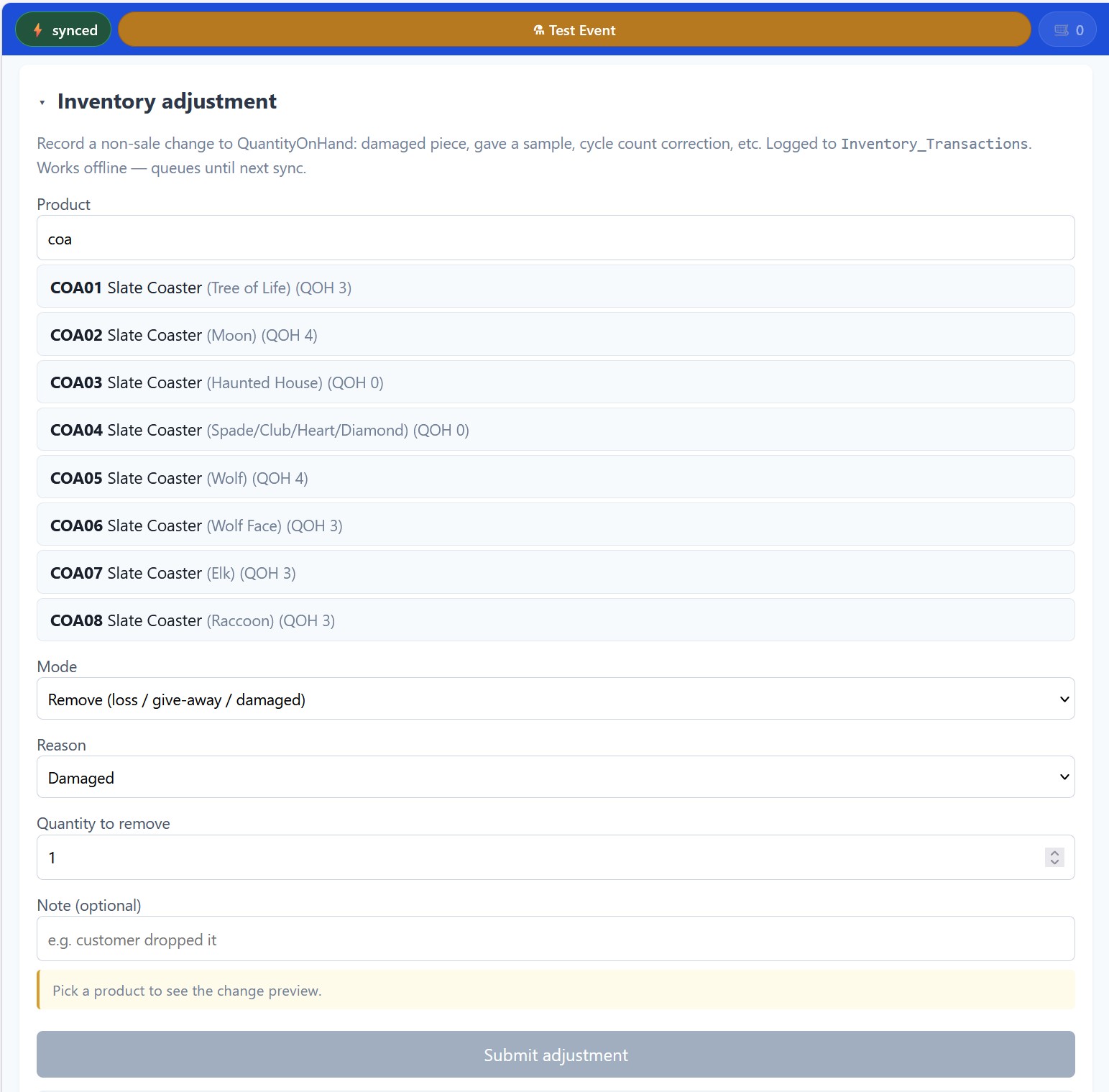
In the app, go to Settings, expand the Inventory adjustment section.
Find the product
Type a SKU or part of the product name into the search box. Matching products show up in a list. Tap the one you want. The form pre-fills with the current QuantityOnHand so you can see what you're changing.
Pick Mode and Reason
Three modes, with reason options tied to each:
- Remove (loss / give-away / damaged): Damaged, Lost, Sample given, Giveaway / promo, Personal use, Display piece (not for sale). Decrements QuantityOnHand.
- Found / positive correction: Found / positive correction. Increments QuantityOnHand (e.g., you found a box you thought was empty).
- Cycle count (set actual count): Count discrepancy. Used when you've done a physical count and need to sync the system to it. Covered in the next section.
Fill in Quantity and an optional Note
For Remove: how many you're taking out. For Found: how many you found. (For Cycle, it's the actual physical count, not a delta; see the next section.)
The Note field is free text. Useful for context the audit trail might want: "customer's kid knocked it off the table," "donated to silent auction at the school fundraiser," etc. The note saves with the row in Inventory_Transactions so you can find it later.
Submit
Tap Submit adjustment. The change is queued (works offline) and applied to QuantityOnHand on next sync. The CostImpact column on the audit row records the dollar value of the change so year-end COGS reconciliation has the data it needs.
Cycle counts (when physical and system disagree)
Eventually your system count and your physical count won't match. Things get miscounted, kids re-arrange your booth, you forgot to post one event. Cycle counts are how you sync them back.
- Pick a product (or a category) and physically count what you actually have.
- Open the Inventory adjustment form, find the product, set Mode to Cycle count.
- The Quantity field changes label to "Actual count (you counted by hand)." Type the number you counted.
- Submit. The system computes the delta from current QuantityOnHand to your actual count, records the change with reason "Count discrepancy," and updates QuantityOnHand to match.
The Inventory_Transactions audit row shows the delta (positive or negative), so you can spot patterns: if certain SKUs keep needing positive corrections, you might be undercounting at some step; if negative, you might have a damaged/lost rate you weren't tracking.
After every 3-4 events for fast-moving categories. After moving inventory between storage locations. End of season, end of year. Whenever the system says "12 left" and you eyeball the shelf and see 8.
Adding new stock (Production sheet)
When you make new pieces (or buy more wholesale stock), you need a way to increase QuantityOnHand for the items you just produced. fiveanddime's Production sheet is a transient scratchpad for this.
Open the Production sheet in your spreadsheet
If you don't have a Production tab yet, your fiveanddime menu → Inventory… has a section to set it up; tap it and a Production sheet gets created. If you do have one, just open it.
List what you made
Add rows. Each row has a SKU dropdown (pick from your catalog), a Quantity, and an optional Note. The dropdown only accepts real SKUs from your current Products_Master, so typos can't sneak in.
Example: you just finished a batch of 15 oak coasters. Type CST-OAK in column A (or pick from the dropdown), 15 in column B.
Apply the additions
In the app, Settings → Inventory… panel → Apply production to QuantityOnHand. The script reads every row in the Production sheet, adds the quantities to the matching product's QuantityOnHand, records each as a row in Inventory_Transactions (source = "production"), and clears the Production sheet.
Now QuantityOnHand reflects what you actually have, including the new stock.
Most makers produce in batches. You make 30 ornaments over a Saturday, type them all into the sheet as you finish, then apply once. Easier than tapping a form 30 times. The sheet is also editable: if you typoed a SKU or quantity, fix the row before applying.
Low-stock badges and stock-at-a-glance
Two ways to know when you're running low without opening Sheets:
LOW badges on item buttons
Set a ReorderPoint on a product in Products_Master. When QuantityOnHand drops to or below that number, the Sale view's item button shows a small red "LOW" badge. Blank ReorderPoint disables the badge for that SKU.
Stock tab
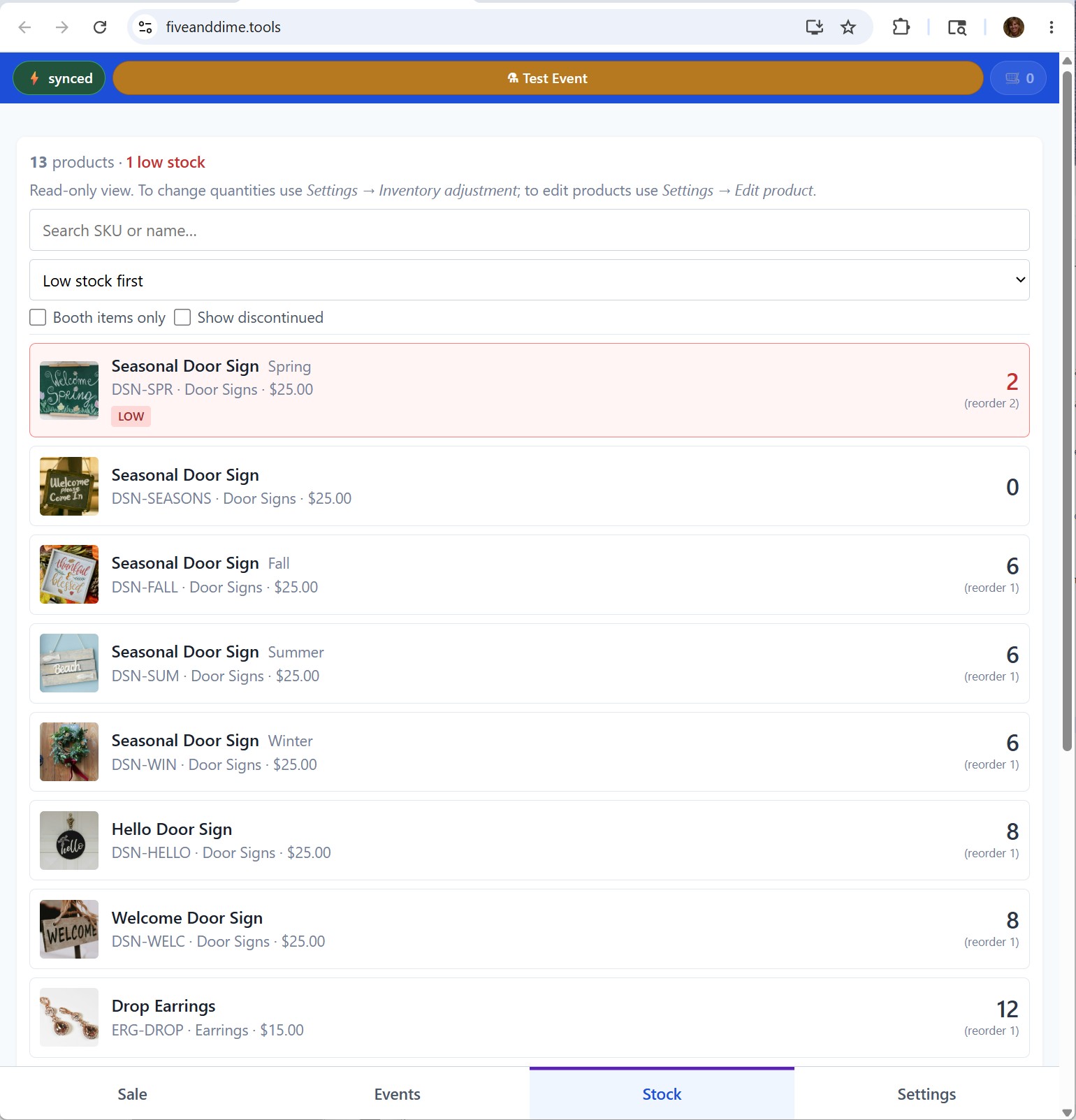
The Stock tab on the bottom nav is a read-only inventory view, sorted low-stock-first. Useful for: "what should I make this week?" and "do I have any of those left?" without opening the spreadsheet. Each row shows the SKU, name, current QuantityOnHand, and whether it's at or below ReorderPoint.
The audit trail: Inventory_Transactions
Every change to QuantityOnHand (from posting, from adjustments, from production) writes a row to the Inventory_Transactions sheet with timestamp, SKU, delta, source, reason, note, and CostImpact (when Cost is set on the product). It's the audit trail for year-end COGS reconciliation, tax filing, and the occasional "wait, what happened to that batch of bookmarks" investigation.
You don't have to touch this sheet directly; the app writes to it. But it's there if you want to look.