What "backup" means here
A backup is a copy of your spreadsheet at a moment in time, saved to a separate file in your Drive. It contains all your products, events, sales, customizations, settings, and bundles. If anything ever goes wrong with your live workbook (bad edit, accidental delete, formula gone sideways), you can open the most recent backup and either copy back what you need or replace your live workbook from it.
Backups live in a folder named fiveanddime-Backups, placed in the same Drive folder as your live spreadsheet. The folder is auto-created the first time a backup runs.
Setting up daily auto-backup
Open the Backups menu
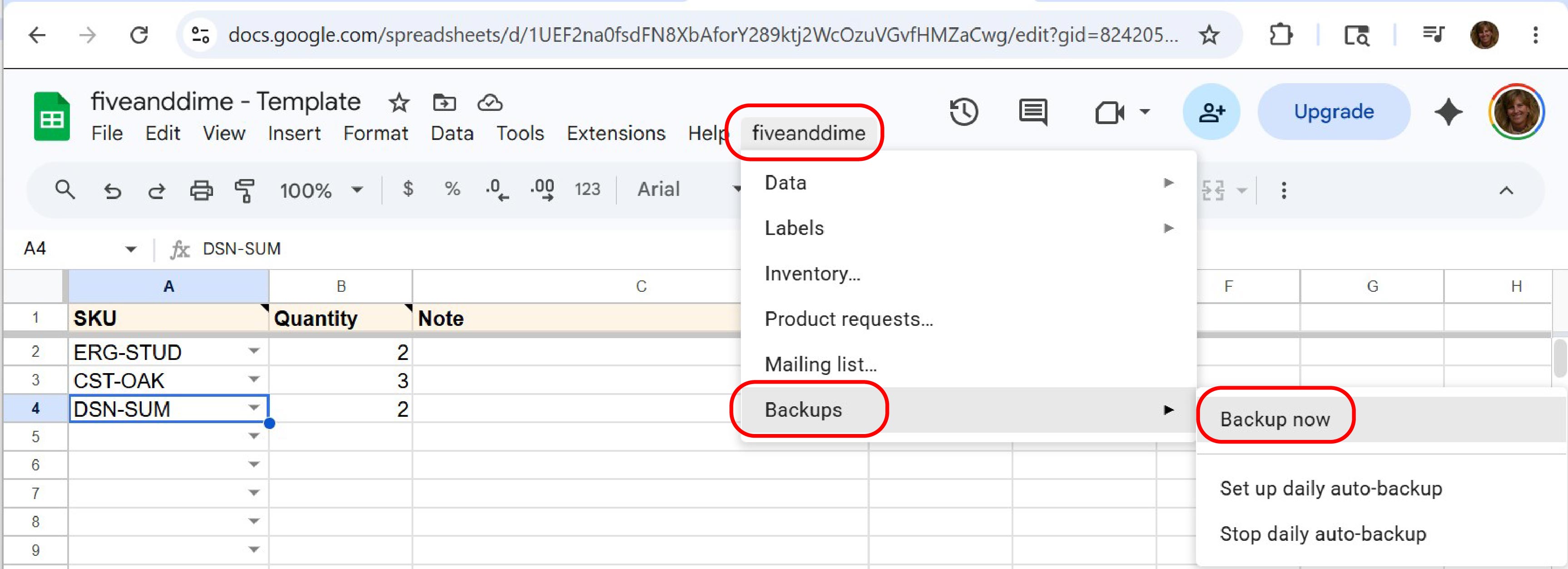
In your spreadsheet, click fiveanddime → Backups in the menu bar.
Tap "Set up daily auto-backup"
The script installs a time-based trigger that fires nightly between 2 and 3 AM (script time, which is whatever Apps Script considers your account's timezone). A toast message confirms.
The first time you run this, Google may show the same authorization flow you saw on first deploy ("App isn't verified" → Advanced → Go to (your script name)). It's the same expected screen, walking you through the new permissions needed for nightly Drive writes. If you need a refresher, the full screen-by-screen walkthrough is in Setup Step 2.
Tap "Backup now" once to seed and verify
From the same menu, tap Backup now. This runs a backup immediately so you can confirm the Drive permissions work and see where the backups land. A toast tells you the filename and folder.
Open Drive, navigate to the folder containing your live spreadsheet, and you should see a new fiveanddime-Backups subfolder with one file in it named something like "My Wood Shop POS Backup 2026-05-10 1432".
From now on, you get a fresh backup every night automatically. The first one is the manual one you just ran. The next 30+ are silent insurance.
On-demand backups (before risky edits)
The same Backup now menu item works whenever you want an immediate snapshot. Useful moments:
- Before a bulk find-and-replace across the catalog.
- Before deleting rows you think you don't need.
- Before running a migration or schema change you're not 100% sure about.
- Before importing a big CSV.
- End of season, just to have a clean snapshot tagged with your "season closed" timestamp.
Each on-demand backup creates a new file (timestamp in the filename, so multiple runs in one day don't overwrite each other). Cheap to run, takes a few seconds.
How long backups are kept
Default: 90 days. After that, the daily run also prunes anything in the fiveanddime-Backups folder older than the retention window. (Pruning only touches files matching the backup filename pattern; nothing else in the folder is at risk.)
To change the retention window, open your Settings sheet and find (or add) the key BACKUP_RETENTION_DAYS. Set the value to:
- 30, 60, 180, etc. for the number of days you want to keep.
- 0 to keep all backups forever (no pruning, ever).
The retention setting reads on every daily run; no restart needed.
Restoring from a backup
If something has gone wrong with your live workbook, you have three options for restoring, from "lightest touch" to "nuclear":
Option A: Use Sheets' built-in version history
For small mistakes (a typo, a deleted formula, a row you shouldn't have removed), File → Version history in Sheets gives you a timeline of changes inside the same file. Roll back to a saved version, or copy specific cells from the older state into the current one. This is usually the easiest and most surgical fix.
Option B: Copy specific data from a backup file
For larger problems where version history doesn't reach far enough (or where you want to compare side-by-side):
- Open the fiveanddime-Backups folder in Drive.
- Find the most recent backup from before the problem.
- Double-click to open it. You'll see a read-only copy of your spreadsheet as it was at backup time.
- Select the data you want to bring back (a range of cells, an entire sheet tab), copy.
- Switch to your live workbook and paste.
Most "I broke something" situations are best handled with Option A or B; you almost never need to nuke the whole workbook.
Option C: Replace your live workbook entirely
For catastrophic situations (live file corrupted, fundamentally wrong, you want to start over from a known-good moment):
- Open the backup file you want to restore from.
- File → Make a copy (this creates a fresh editable copy of the backup).
- Rename the new copy to whatever your live workbook was called (or keep "Backup" in the name to be safe; rename later if you want).
- If your fiveanddime backend's
scriptIdis bound to the old workbook, the new copy needs its own backend re-deployment. Or, if you can recover the old workbook in any form, prefer restoring data into it (Option B) rather than swapping workbooks entirely.
Option C is rare and usually a sign that something went very wrong. Don't reach for it as a first move.
If you restore from a backup taken before today's sales, any sales rung after that backup point are gone from the sheet (they may still be queued locally on your devices if the queue hasn't drained). For Option B (selective copy), this means you should restore only the rows you actually want from the backup, not entire sheets if there's been real activity since. For Option C, accept the loss or wait for queued sales to drain into the old sheet first.
Stopping daily auto-backup
If you ever need to: fiveanddime → Backups → Stop daily auto-backup. The trigger is removed and no further automatic backups run. Existing backup files in Drive are untouched. You can re-enable anytime with "Set up daily auto-backup" from the same menu.