Deploy your backend
"Backend" sounds technical, but here's what it really is: the script that came with your template needs to be turned into a public URL the app can talk to. Google does the work; you click through a few prompts. About 90 seconds once you know where the buttons are.
Open the Apps Script editor
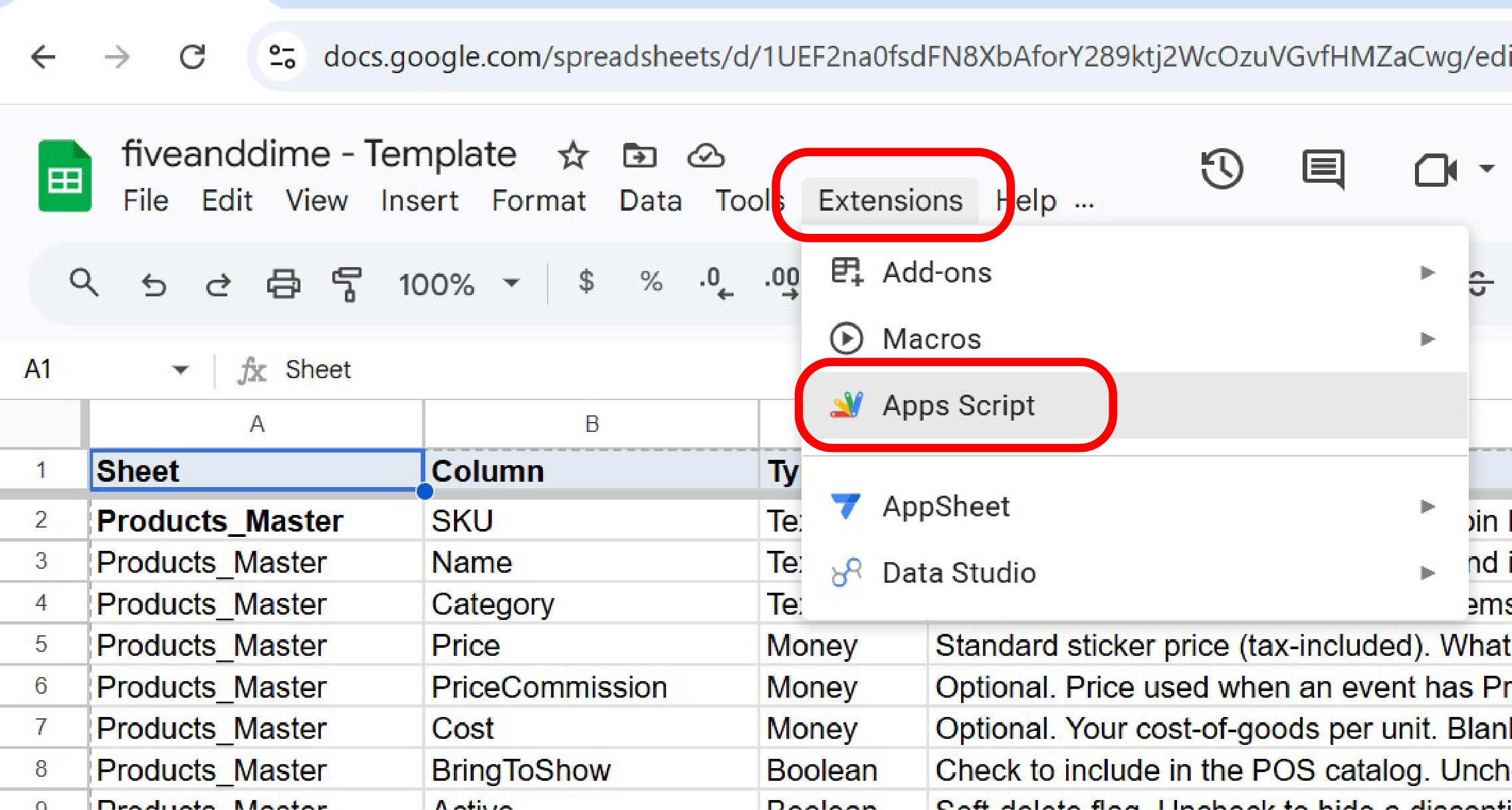
In your spreadsheet, click Extensions in the menu bar, then Apps Script. A new tab opens with the script editor. All the code you need is already there; it came with the template.
Click Deploy → New deployment
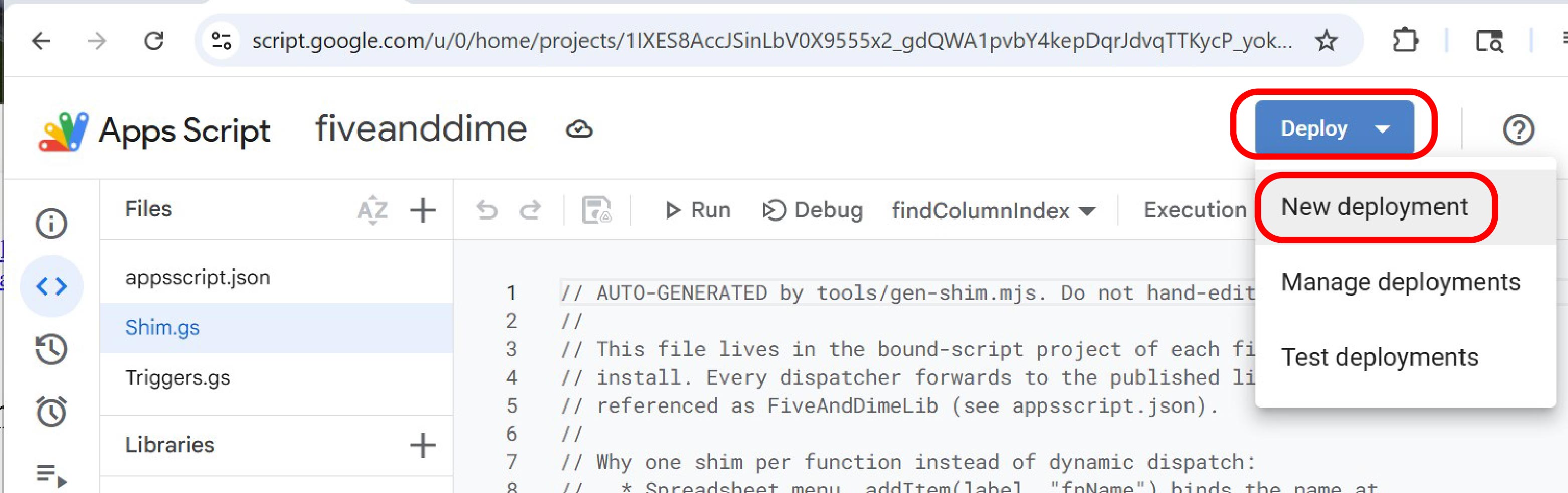
In the script editor, look for the Deploy button at the top right of the page. Click it, then choose New deployment.
Choose Web app
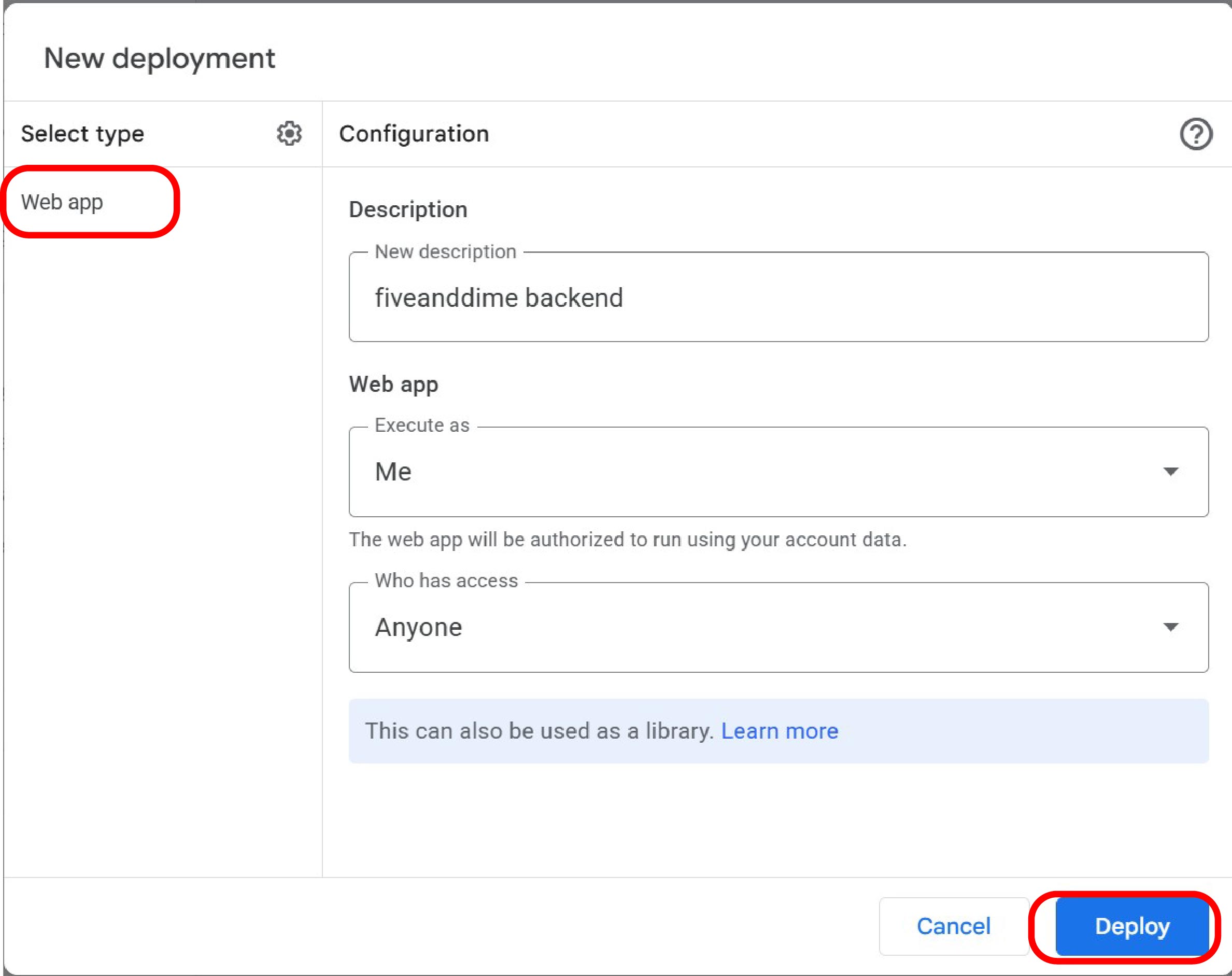
A "New deployment" dialog opens. Click the gear icon (⚙) on the left and choose Web app from the list. Then fill in the right side:
- Description:
fiveanddime backend v1(anything works; this is just a label) - Execute as: Me (so the script runs with your permissions on your data)
- Who has access: Anyone (the URL is long and unguessable; see the security note below)
API_SECRET setting that adds a shared-secret check on top, covered in the Settings tutorial if you want it.
Click Deploy, and authorize (six screens)
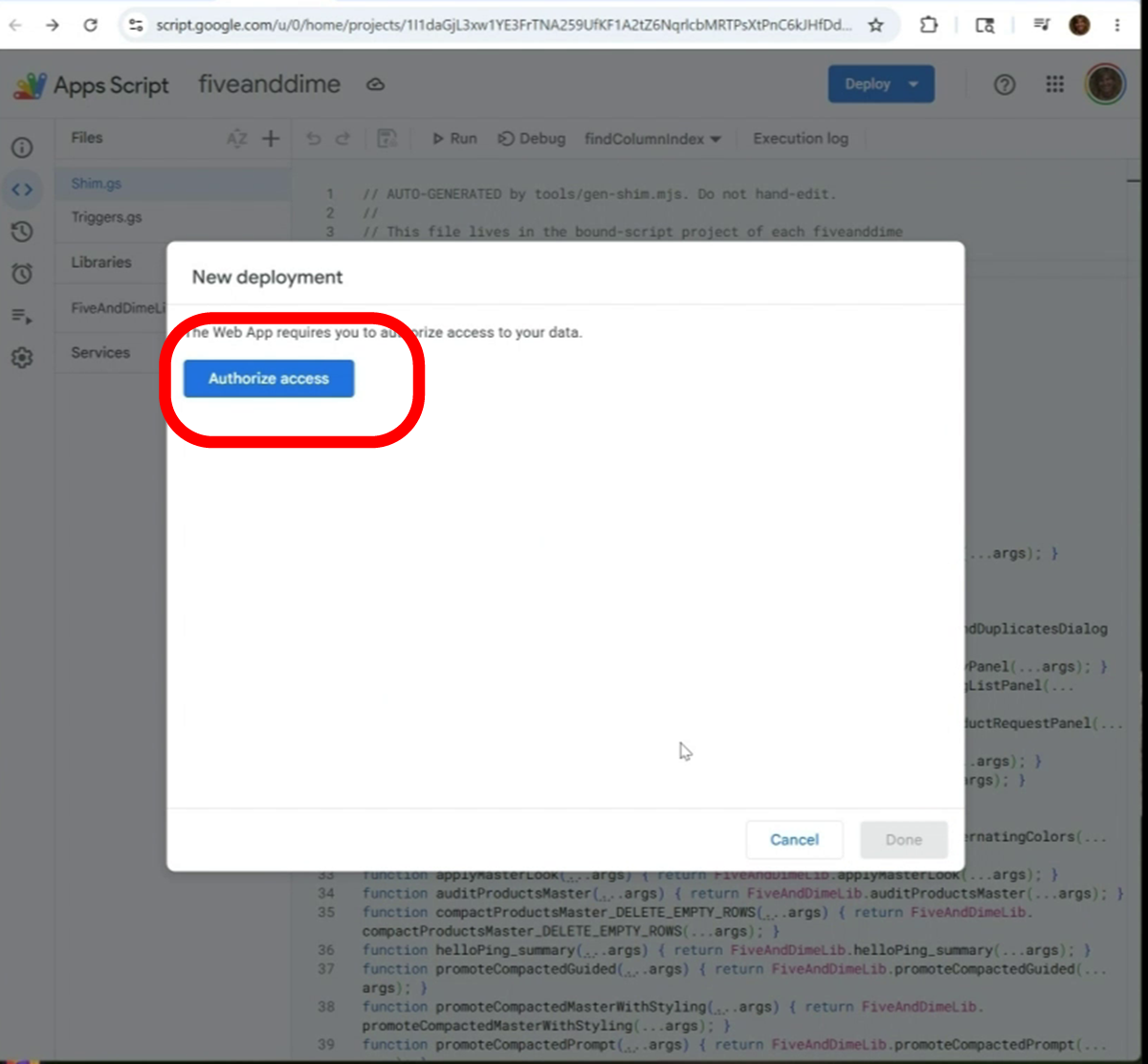
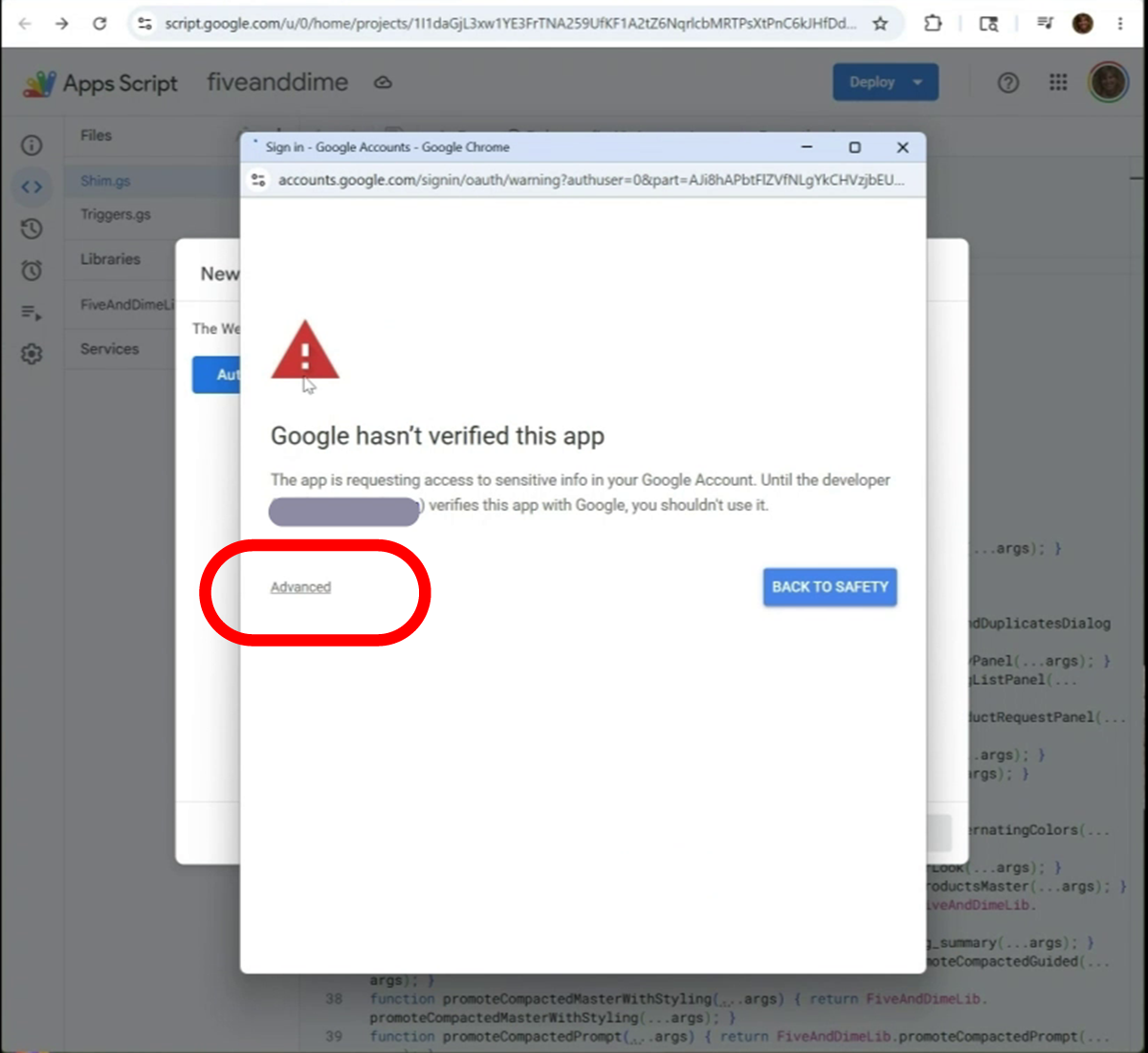
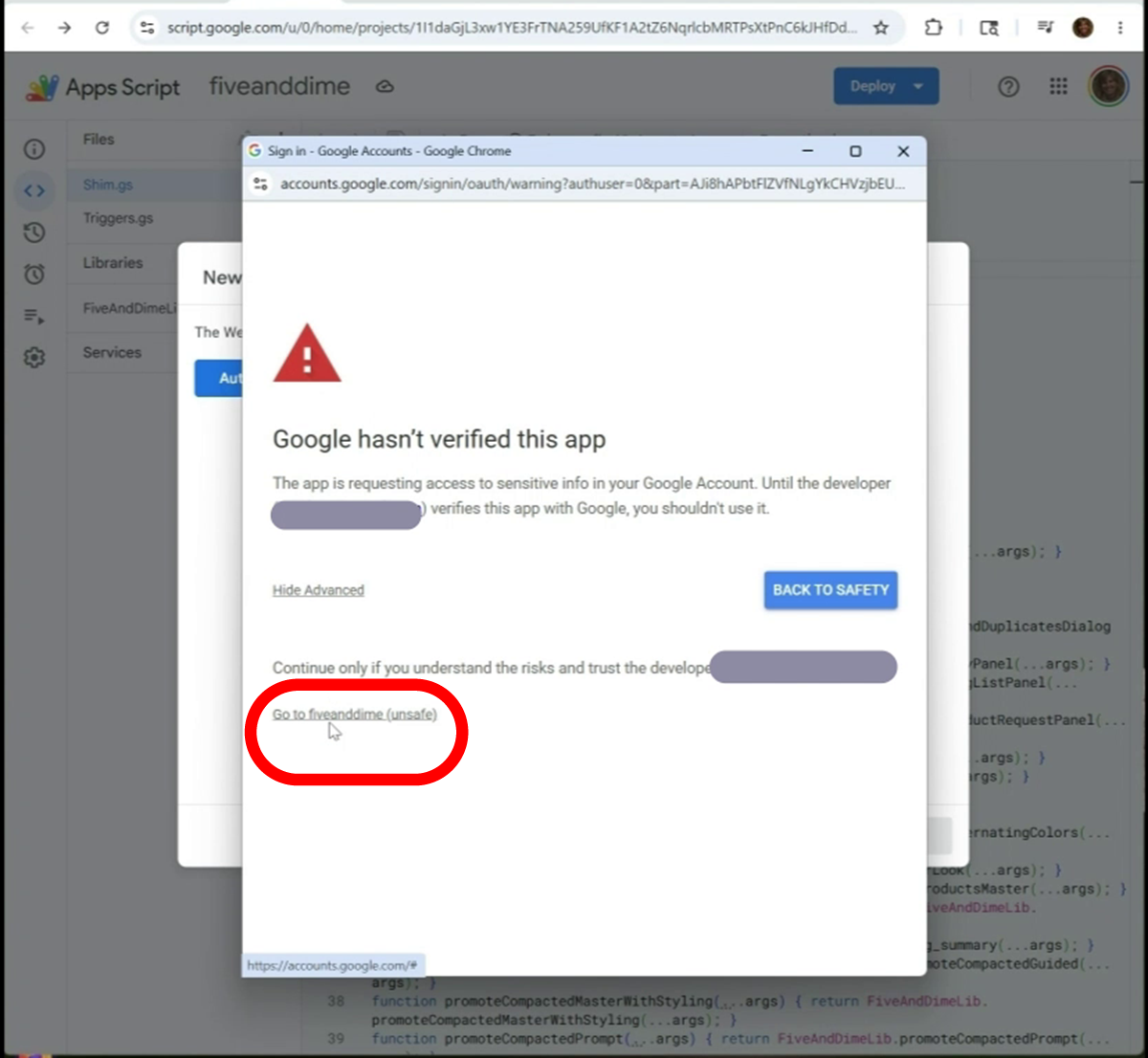
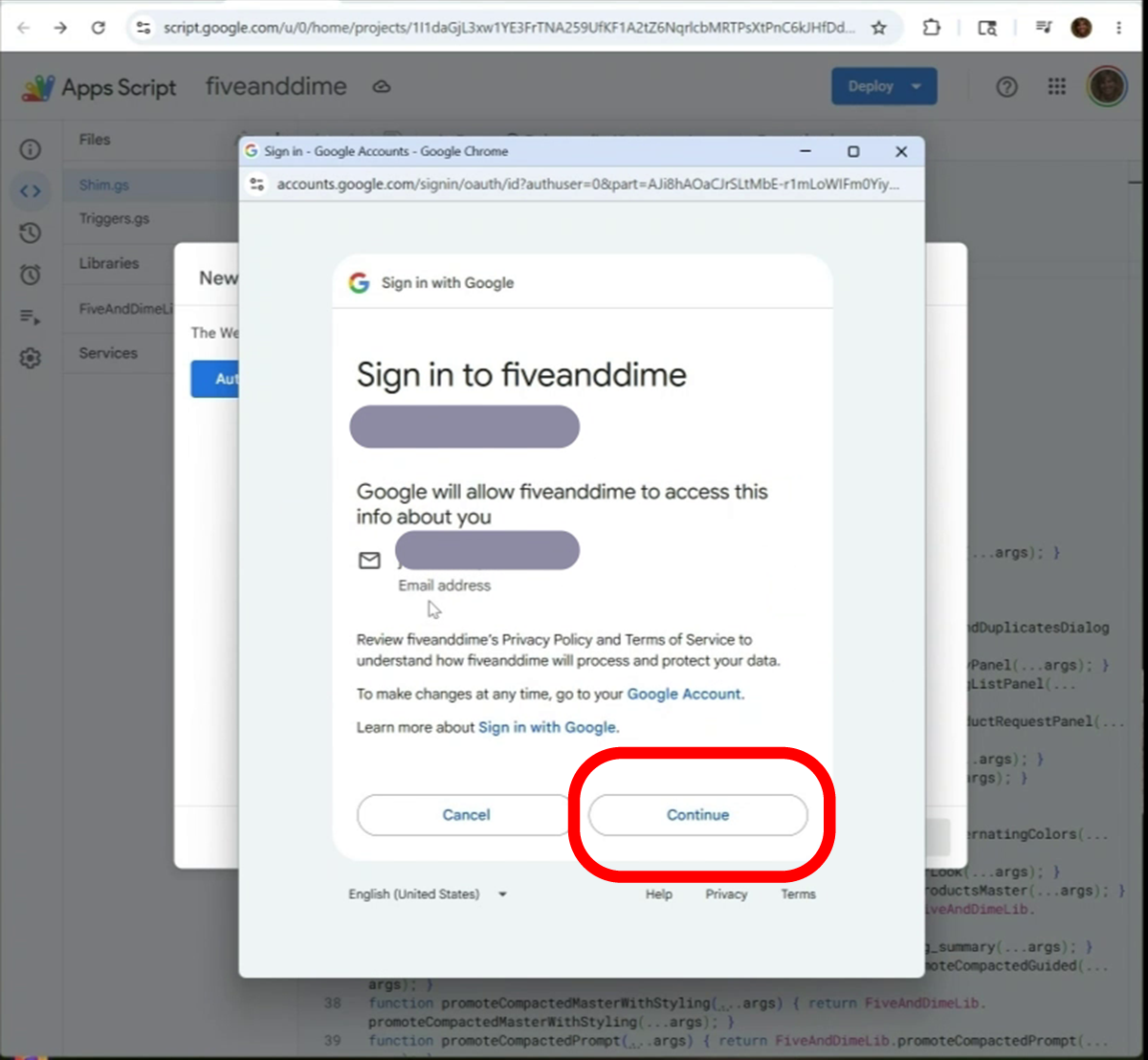
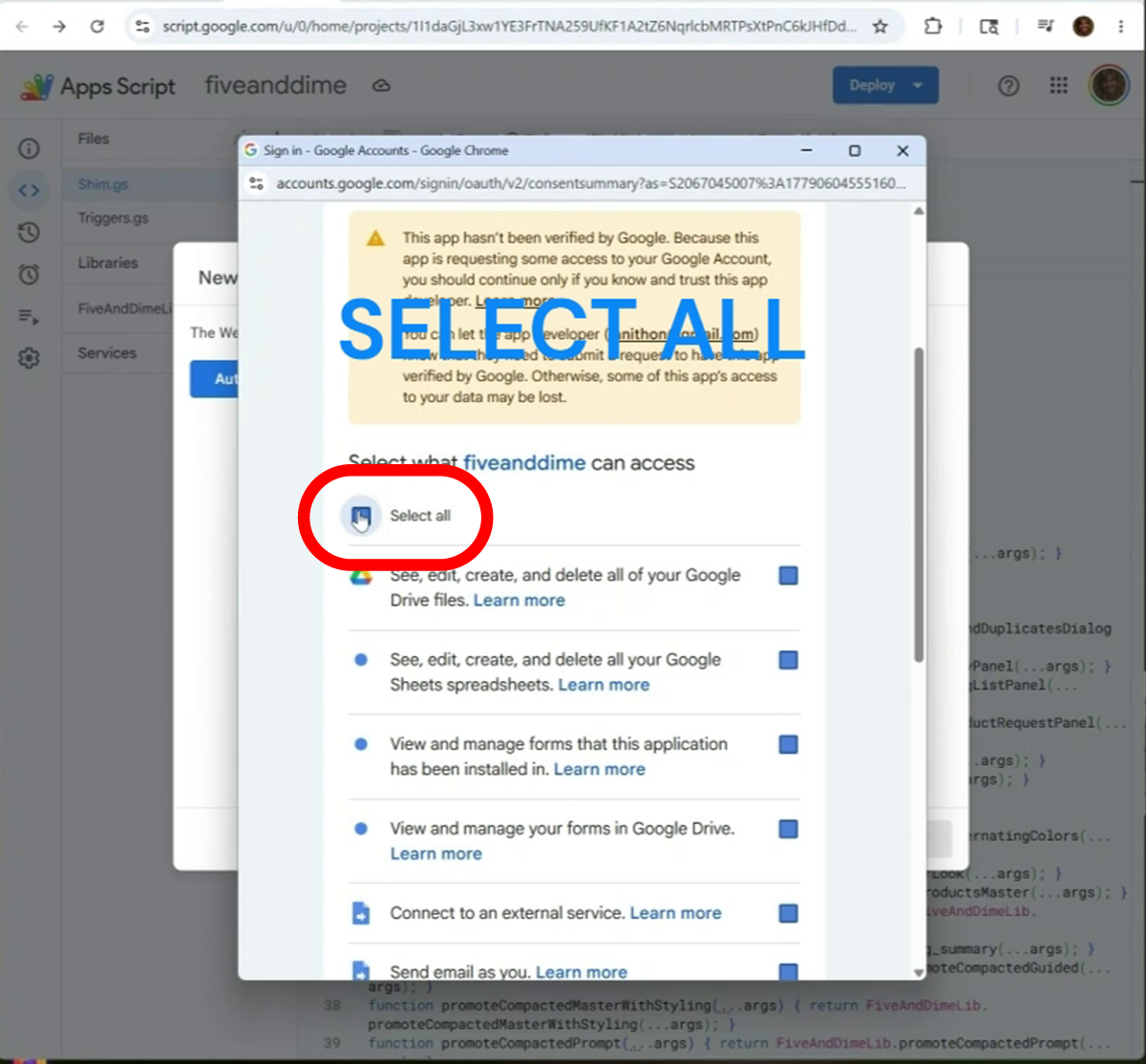
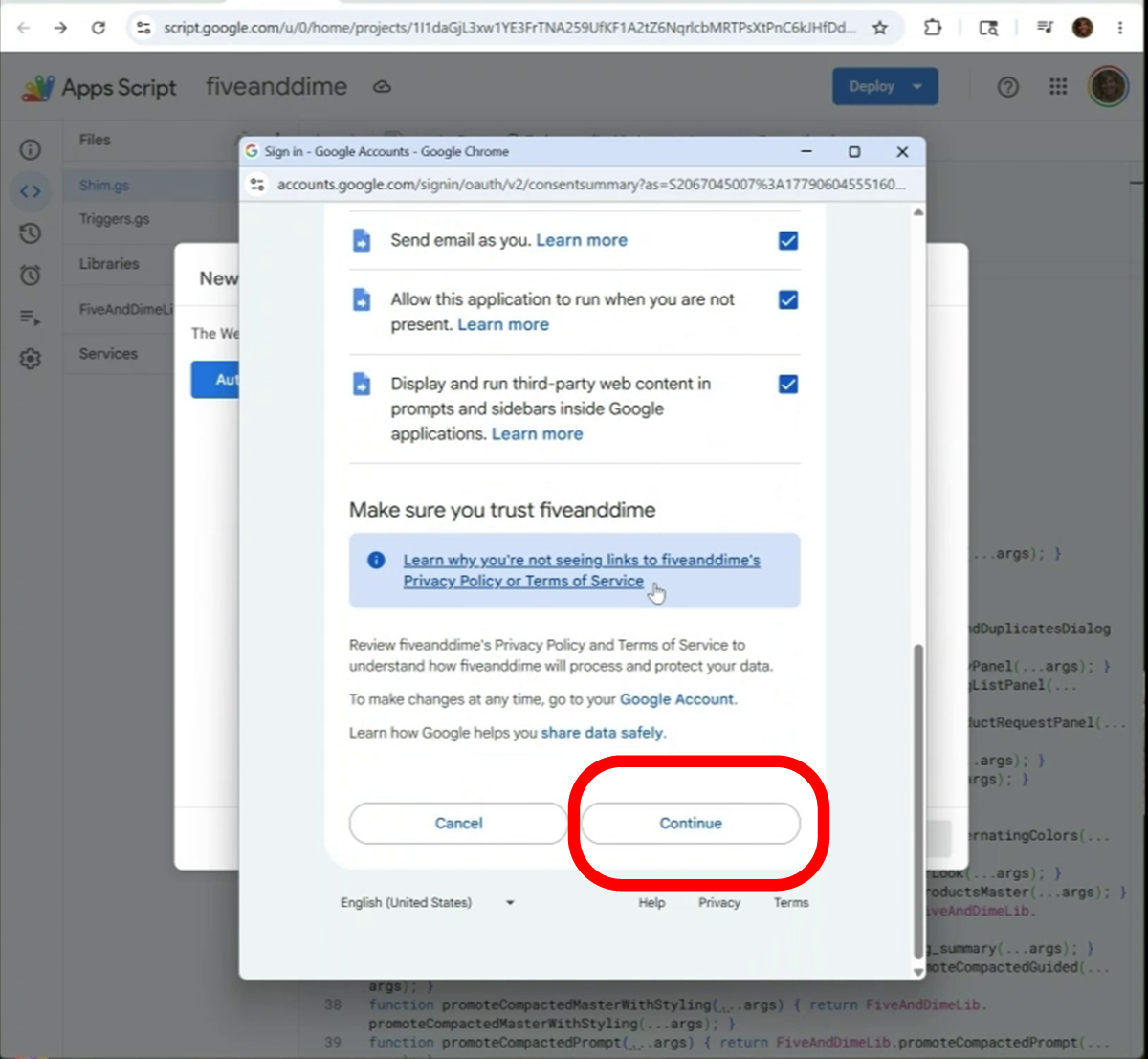
Click the blue Deploy button at the bottom of the dialog. Because this is the first time you've run this script, Google needs your permission for it to access your spreadsheet. You'll click through six screens (a couple are the same Google screen captured before-and-after you expand or scroll). The first run looks scariest, and the rest of this step walks through exactly what each screen is doing. Every screen below is expected; nothing is broken.
You've probably seen this style of warning before. Windows pops up "this app is from an unknown developer" the first time you run a program you downloaded from the internet. iPhones ask you to "trust this app" the first time you install something outside the App Store. Same kind of warning, same kind of workaround, same reason: Google can't tell which homemade scripts are safe, so they show this caution before any non-Google script runs in your account. Yours is fine because you're the one putting it in your own account by following this tutorial.
The wording is more dramatic than the actual risk. Google's verification process is built for big companies publishing apps to the world, not for individual makers selling small tools to each other. There's no way for the seller to make the warning go away on your copy, because verification is tied to the copy on your own account, not to ours.
You'll see this same warning the first time other features need a new permission (the daily backup, label PDFs, QR codes). Same flow each time, then never again for that feature. The first time feels weirdest; by the third, you'll click through in 10 seconds.
The authorization flow
Copy the Web App URL
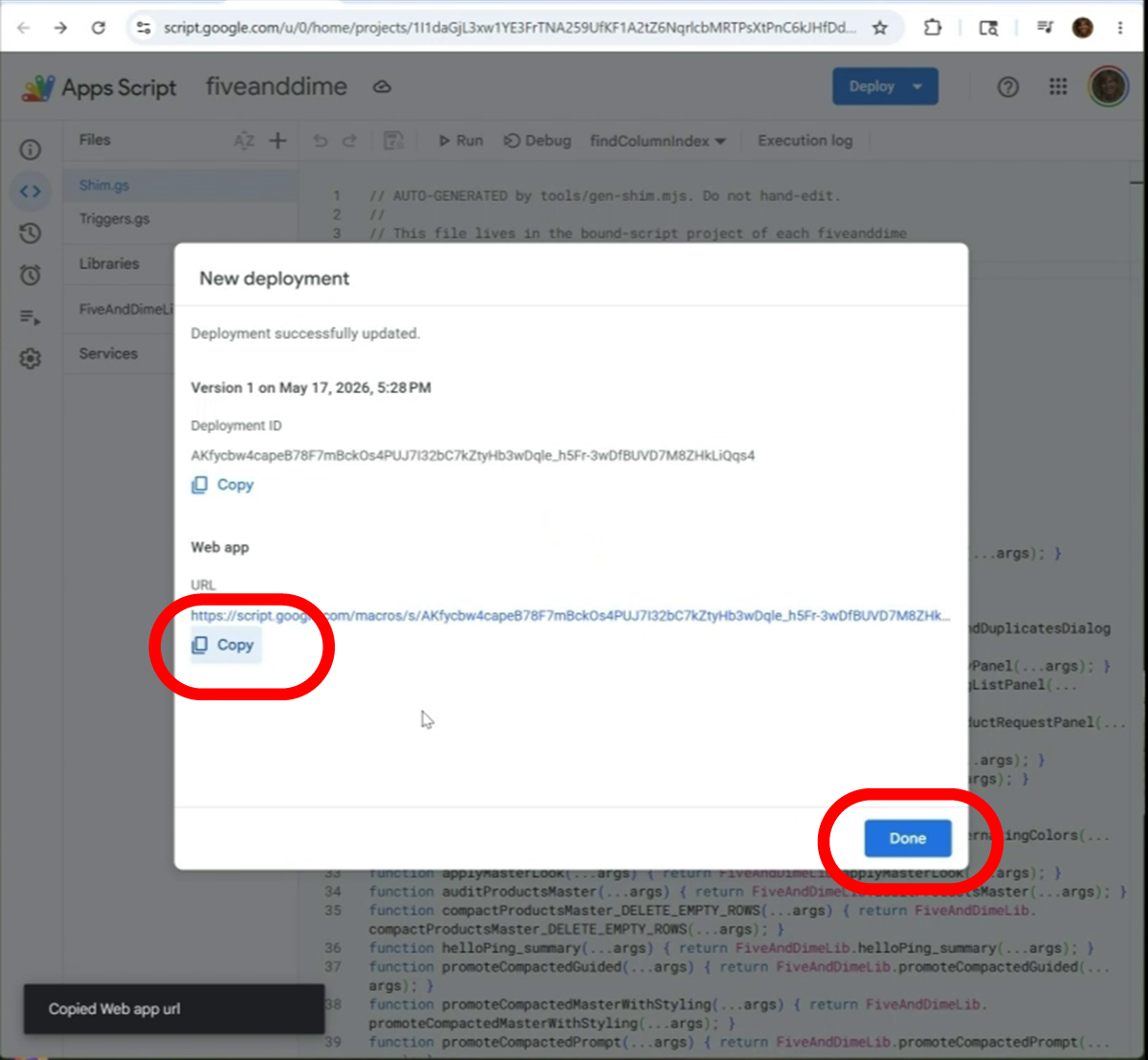
Once Google says "Deployment successfully created," you'll see a long URL labeled Web App. Click the copy icon next to it (or select + Ctrl/Cmd-C). Save it somewhere; you'll need to paste it in Step 4. If you lose it later, open the script editor again, click Deploy → Manage deployments, and the URL is right there.
Register your backend URL with your license
One last small step before installing the app. Open the link below (or the "Register your backend" link from your welcome email — the license key is already filled in for you on that one):
https://fiveanddime.tools/connect/
If you arrived via the welcome email link, your license key is already in the form. If you came in cold, paste it in (looks like FD-XXXX-XXXX-XXXX). Then paste the Web App URL you just copied into the second field. Tap Submit.
You'll see a confirmation message. This tells the licensing service which backend belongs to your license, so the next step (installing the app and validating your license) can auto-find your backend without any URL pasting.
Browser-side registration is easier than punching a long URL into your phone. Once registered, the app fetches the connection automatically when you validate your license; you never have to type or copy-paste the Web App URL into the app itself.
fiveanddime.tools/connect/. The hardest part of setup is now behind you.