Categories
Categories are how your products group together at the booth. They appear as tabs across the top of the items grid. We do them first because every product needs to belong to one.
Open the Categories sheet
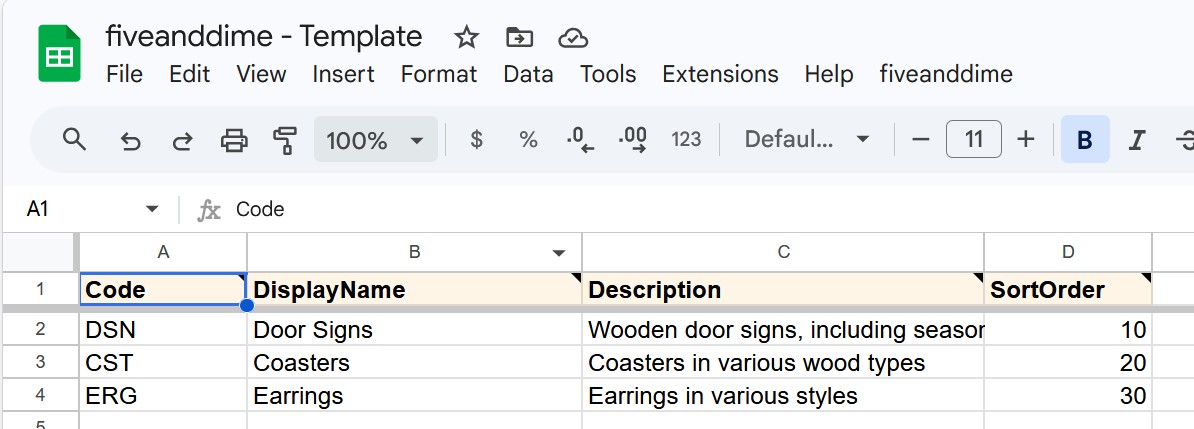
In your spreadsheet, click the Categories tab at the bottom. You'll see four columns:
- Code. A short identifier (3 letters works well). Used internally to link products to categories. Example from the sample data:
DSNfor door signs. - DisplayName. The friendly name shown on the category tab in the app. Example:
Door Signs. If you leave it blank, the app falls back to showing the raw Code. - Description. Optional notes for yourself. Not shown in the POS.
- SortOrder. The display order. Lower number means earlier in the tab strip. Default values are 10, 20, 30 with gaps so you can insert (15, 25) without renumbering everything.
Replace the sample categories with yours
The template ships with three sample categories (Door Signs, Coasters, Earrings). Either edit them in place, or delete them and add your own.
Pick category codes that are short and memorable. Three or four letters is the sweet spot:
BOOBookmarksSGNSignsJEWJewelryCDLCandlesHOMHome decor
Codes don't need to be three letters. BAGS or SOAP work fine. Just keep them stable once you start using them, because your products' Category column has to match.
Set the SortOrder
SortOrder controls which category tab appears first, second, third in the app's items grid. Put your highest-volume categories first; they'll be the most-tapped. Use 10, 20, 30 spacing to leave room for reorganizing later.
If you change a Code (say, BOO to BKM), every product whose Category column says BOO stops finding its category. The DisplayName is safe to change anytime; the Code is what the rest of the system uses to find this row, so if you rename it the links break. If you really need to rename, do a find-and-replace across both sheets.
A category tab appears on the Sale view only when at least one active product (Active=TRUE, BringToShow=TRUE) lists that category in its Category column. So if you add a new category row here but don't yet have any products tagged with it, the tab won't appear — that's intentional, not a bug. Empty tabs at the booth would be visual noise. Add a product with the new category in Step 2, Pull from Backend, and the tab will appear.
When you're done editing, open the app and go to Settings → Pull from Backend Now so the new categories load into the device. Sheet edits don't sync to the app automatically.