Parents and variants
For products that come in flavors (sizes, colors, months, scents), the catalog has a parent-and-variant pattern. The parent is the umbrella; the variants are what actually sells. If your catalog has no flavors, skip this step.
The pattern
Examples that fit:
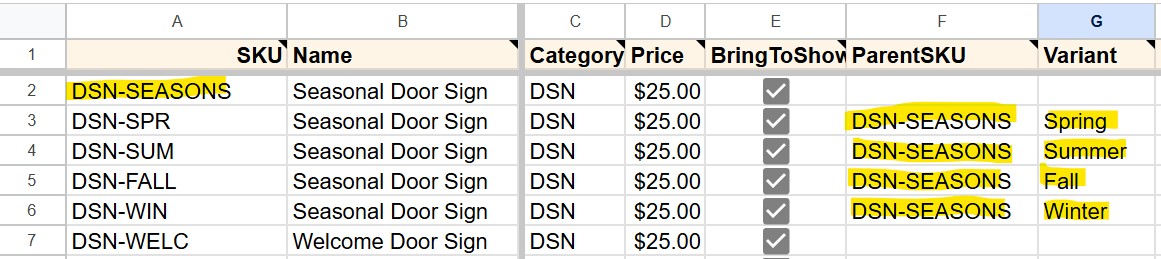
- Seasonal Door Sign in Spring / Summer / Fall / Winter (this one is in the sample data)
- Wooden sign with 5 quote choices (each a different variant)
- T-shirt in S, M, L, XL
- Soy candle in Lavender, Vanilla, Eucalyptus
The pattern: one row in Products_Master is the parent (the umbrella concept). Multiple rows are variants (what actually sells), each pointing back at the parent via ParentSKU. The parent itself isn't usually sold; tapping it in the POS opens a chooser modal showing the variants.
Setting up parents and variants
Create the parent row
Add a row in Products_Master with the parent's name. Fill in:
- SKU. The parent's SKU. Example from the sample data:
DSN-SEASONS. - Name. The umbrella name. Example:
Seasonal Door Sign. - Category. Same category the variants will use. Example:
DSN. - Price. The default price (variants can have their own; this is the fallback).
- Leave ParentSKU blank. Parents don't have parents.
- Leave Variant blank.
- BringToShow: your call. See "How variants show in the booth" below.

Create each variant row
For each variant, add a new row. Fill in:
- SKU. A unique SKU for the variant. Two conventions work:
- Category code plus variant suffix (what the sample data uses):
DSN-SPR,DSN-SUM,DSN-FALL,DSN-WIN. Each starts with the category Code (DSN) so you know what kind of product it is, with a short variant suffix. Keeps SKUs short enough to print cleanly on small labels. - Sequential category number: variants are just the next SKUs in your sequence (
DSN03,DSN04,DSN05,DSN06). Even shorter; useful if you prefer pure numeric ordering. The link to the parent lives in the ParentSKU column either way.
- Category code plus variant suffix (what the sample data uses):
- Name. Same as the parent or a more specific name. The Variant column is what shows up alongside in the cart, so the Name can stay umbrella-ish.
- Category. Same as the parent.
- Price. Either the same as the parent's, or different if variants are priced differently. (Most are the same.)
- ParentSKU. The parent's SKU. Example:
DSN-SEASONS. This is what links them. - Variant. The variant label. Example:
Spring. Shown in the cart, on labels, in the variant chooser modal, and on the booth-side item button itself (in a smaller muted line beneath the Name). Variants of the same Name read distinguishably on the grid as long as the Variant column is filled in. - BringToShow. Your call. Covered in the next section.
Pull from backend, see it work
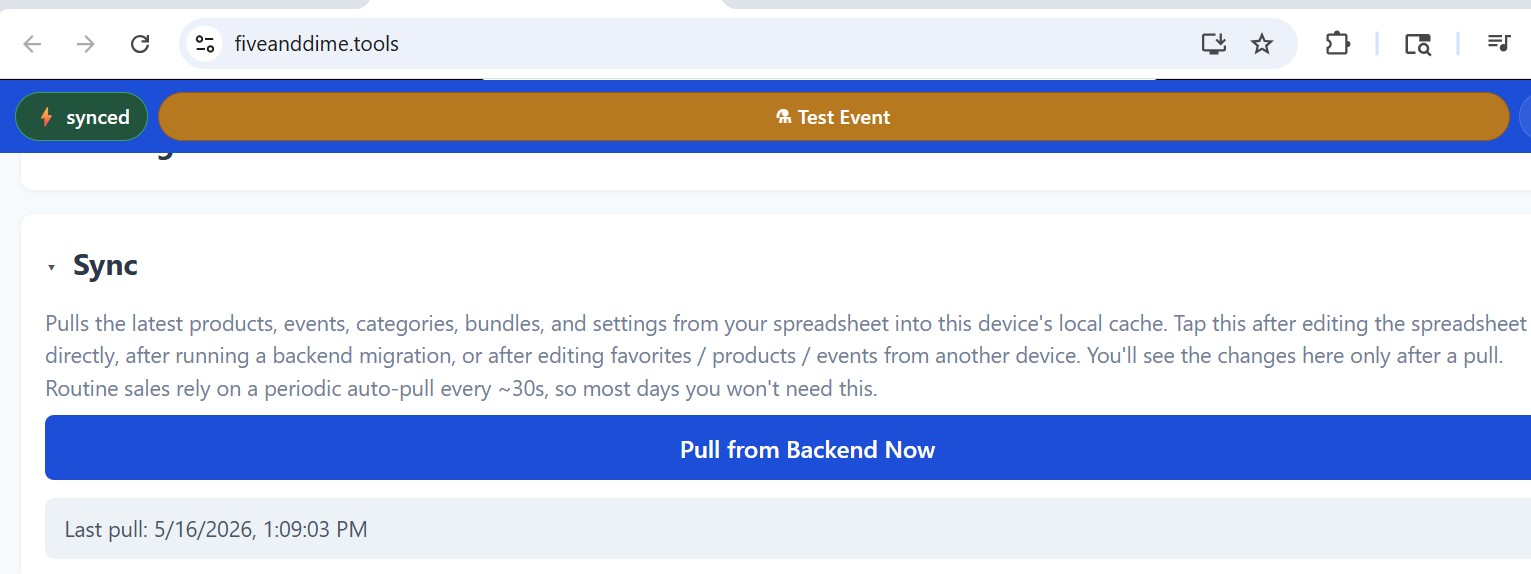
In the app, Settings → Pull from Backend Now. The new products show up. The parent row has a small visual treatment (a purple ring around the button) signaling "tap me for variants." Tap it, and a chooser modal slides up showing each variant by name and price. Tap one to add it to the cart.
How variants show in the booth
The booth-side item buttons show the product's Name with the Variant label beneath (when set). So a row with Name = "Seasonal Door Sign" and Variant = "Spring" renders a button that reads "Seasonal Door Sign" on the first line and "Spring" beneath it in a smaller muted font, with the price below. Variants sharing the same Name stay distinguishable as long as you fill in the Variant column.
Two patterns work, depending on your catalog:
Parent launcher (good for many variants)
- Parent: BringToShow = TRUE. Optionally add a FavRank value to pin it to your Favorites tab.
- Variants: BringToShow = FALSE.
Result: one button per parent in the booth grid. Tap it to open the chooser modal, which lists each variant by its Variant label (Spring, Summer, Fall, Winter). Pick one to add to the cart. Clean booth UI, scales to any number of variants. Best for catalogs with 6+ variants per parent.
Variant grid (good for short variant lists)
- Parent: BringToShow = FALSE.
- Variants: BringToShow = TRUE.
Result: each variant is its own button, showing Name plus Variant. One tap to add. No chooser. Best when you have just a few variants and want speed over chooser-clicks.
You can also do both (parent and variants all BringToShow=TRUE) if you want the parent in Favorites and the variants in their category tab. Just make sure every variant row has its Variant column filled in.
Inventory and variants
Each variant tracks its own QuantityOnHand. The parent row's QuantityOnHand is ignored (parents aren't sold directly). When sales happen on a variant, that variant's count decrements; the parent stays at whatever it was.
Practical implication: stock reports count variants individually. You'll see "Seasonal Door Sign, Spring: 4 left" not "Seasonal Door Sign: 24 left."
Pricing variants differently
Most variants share the parent's price; you don't have to fill in Price on each variant if it matches. But you can override per-variant: a deluxe size, a holiday edition, a sale variant. Just put a different number in the variant's Price column.
If your "variants" are really separate products with no shared identity (Welcome Door Sign vs. Hello Door Sign, for instance, in the sample data, which are different signs that just both happen to be door signs), make them flat products. Parent-and-variant pays off when there's a shared concept (the same shirt in three sizes, the same door sign in four seasons), not when items are distinct things that happen to share a category.