Cart features
The features that show up once a sale is more than "tap, tap, pay." Haggling, tax-exempt buyers, vendor tips, manual one-offs, customization details.
Per-line price override
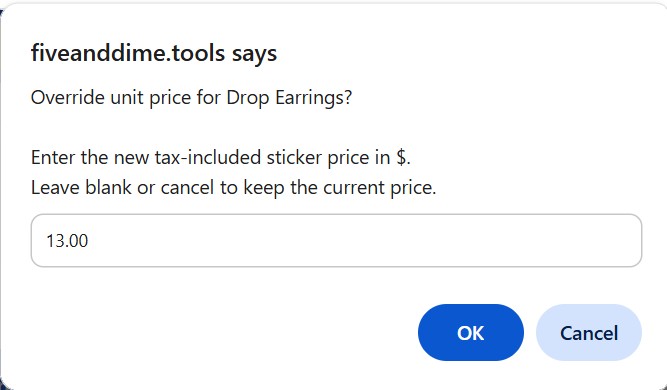
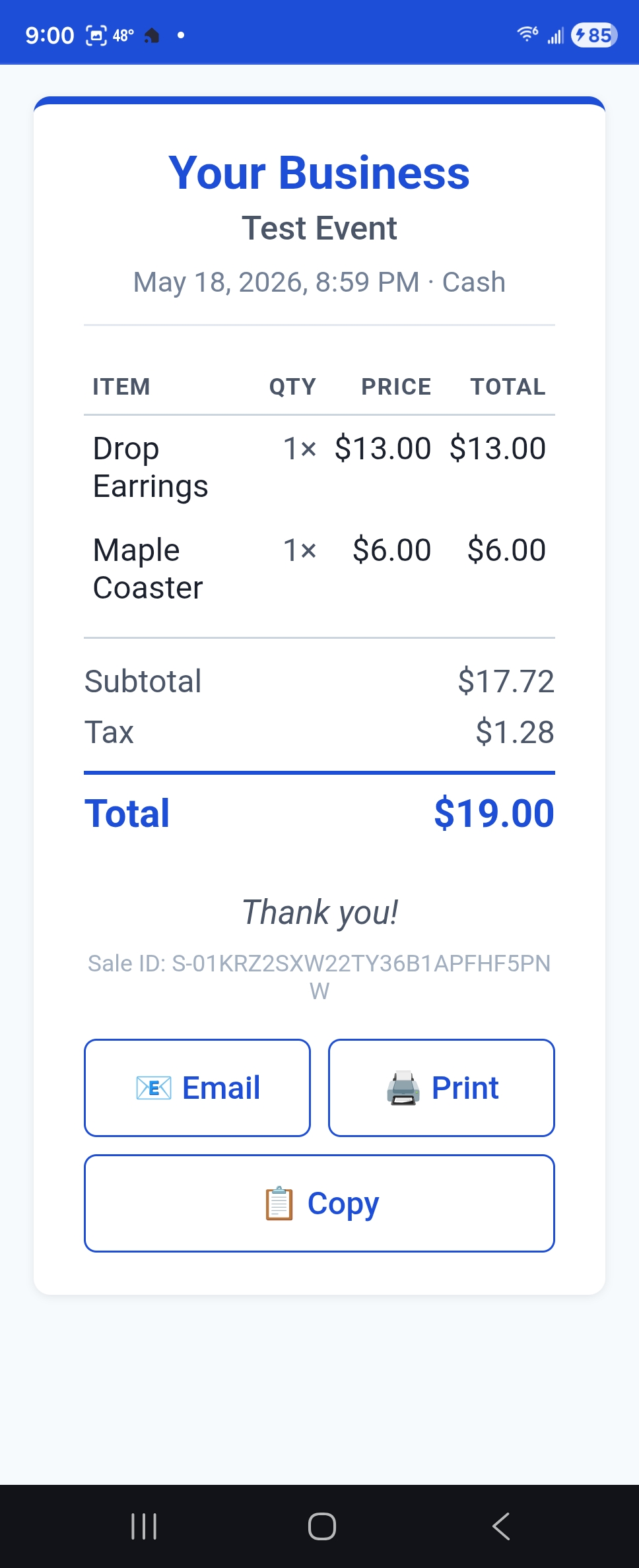
Customer says "would you take $40 for these two?" Tap the price on the line you want to adjust. A dialog opens; type the new per-unit price. The cart total updates with the discounted price; the receipt shows the price you charged.
Override applies to that line only, in this cart only. Your catalog Price column is unchanged. If you want a permanent price change, edit Products_Master.
Cart-level discount
Different from a per-line override: a cart-level discount comes off the total, not any one line. Useful for "$5 off if you buy three or more" type deals you handle by feel rather than auto-bundle rules.
In the cart's discount row, toggle between $ and % mode, then type the discount value. The total recalculates. Receipts itemize the discount as its own line.
Tax-exempt sales
Resale certificate buyers, registered nonprofits, certain wholesale arrangements: these are tax-exempt by law. The cart has a tax exempt checkbox. Tap it before completing the sale. Tax computes to zero on that cart; the receipt shows "TAX EXEMPT" in place of the usual tax line.
If a tax authority audits you, you'll need to show why each tax-exempt sale was exempt. Photograph the buyer's resale certificate or nonprofit ID at the booth and store it somewhere you can find later (a phone album works fine). fiveanddime tracks that the sale was exempt but doesn't store the documentation.
Tips
For vendors with a tip jar or who occasionally get tipped: the cart has a tip row with quick buttons (none / 10% / 15% / 20%) and a custom-amount option. Tap the percentage the customer offered, or type the dollar amount, then complete the sale. The tip records as its own line on the sale and shows on the receipt.
Most craft vendors leave tip at "none" most of the time. Use this when a customer is being generous and you want to acknowledge it on their receipt.
Manual items (off-catalog products)
Sometimes you have something to sell that isn't in your catalog. A piece you made on the drive over, an open-box item with a markdown, a one-of-a-kind that doesn't deserve a SKU. The cart's + Add manual item button (next to the cart) opens a quick form: type a name, type a price, tap Add. It goes into the cart like any other line.
Manual items don't move inventory (they're not in your catalog) but they do count toward sales totals, tax, and the per-event P&L. Receipts show the name you typed.
Customizations
If a product has the Custom column set to TRUE (engraved items, custom-color requests, made-to-order pieces), each cart line for that product shows a small + Customize button. Tap it to open a quick form for capturing the customization detail (the text to engrave, the color choice, the date the customer needs it by, etc.). The detail rides with the sale and appears on the receipt; it also lands in your Customizations sheet for production tracking.
If you're taking a deposit on a custom order rather than a finished sale, that's a different flow with its own tutorial: Custom orders & deposits.