Special situations
The booth-day moments that happen often enough that fiveanddime handles them, but rare enough to learn separately. Customer step-aways, voided sales, scanning, and what to do after the event.
Parking a cart (customer steps away mid-sale)
A customer has half a cart, says "let me grab my husband, I'll be right back," and walks off. Another customer is already standing there. You don't want to lose the first cart, and you don't want the second customer to wait.
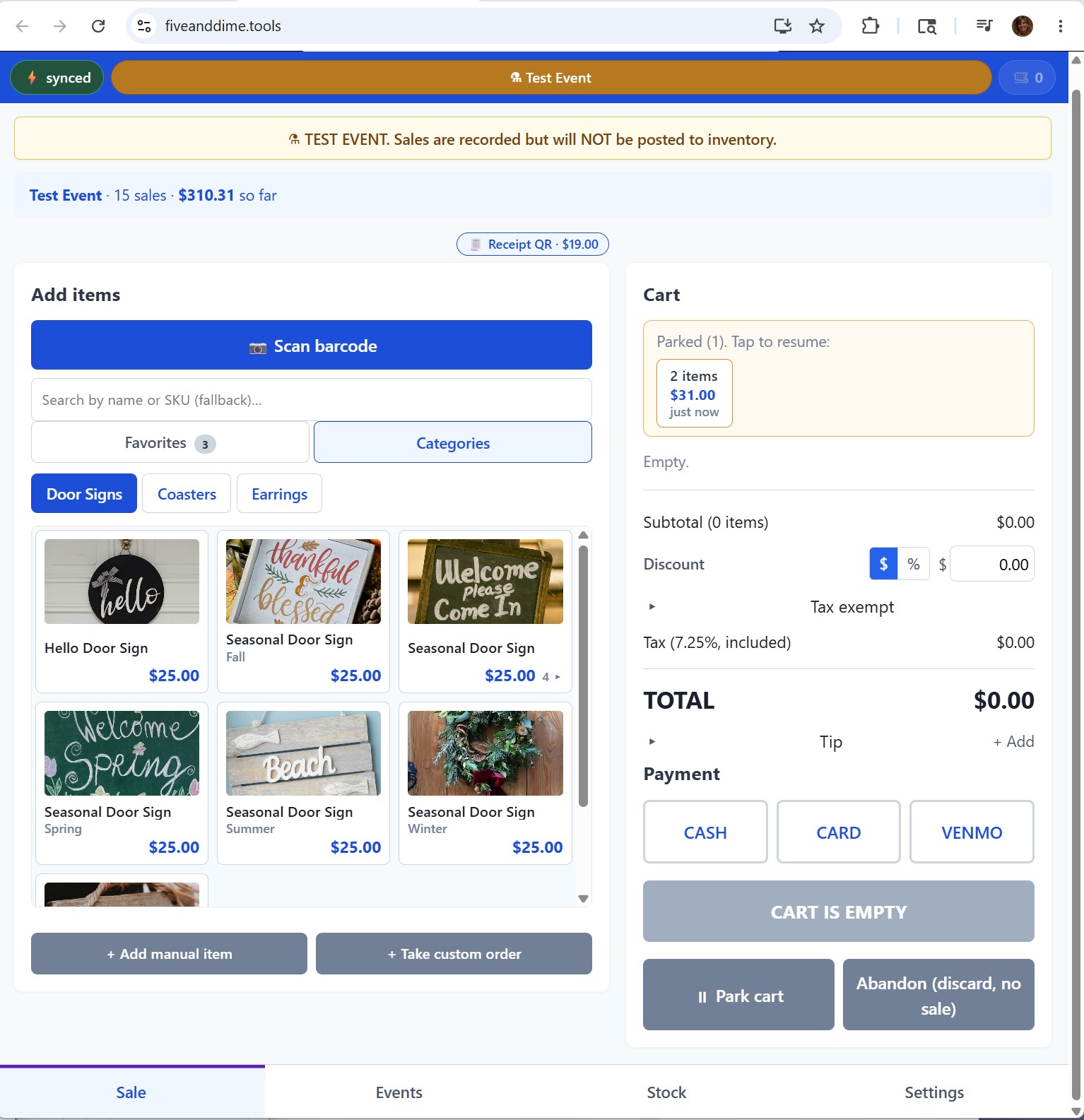
Tap Park cart (next to the cart area). The current cart gets stashed; you can ring the next customer's sale on a fresh empty cart. When the first customer returns, a "parked carts" strip appears at the top of the cart area showing each parked cart with the item count and total. Tap to resume.
You can park as many carts as you need to. Empty carts auto-discard during park/resume (no clutter from carts that never had anything in them).
Voiding a completed sale
You hit Complete, then the customer changes their mind, or you accidentally rang the wrong item, or the card was declined after the fact. To reverse: switch to the Events tab (bottom navigation), find the sale in the list, tap it to expand, tap Void.
Voided sales stay in the Sales sheet (history is preserved) but they're marked with a Voided = TRUE flag. They're excluded from totals, from end-of-event inventory posting, from reports. The list shows a "VOIDED" badge on the row.
If you change your mind about voiding, you'll need to re-ring the sale fresh; there's no un-void.
Scanning barcodes
If you've printed barcode labels for your products, you can scan with the device camera instead of tapping. Tap the scan button in the Sale view, point at the barcode, the item drops into the cart. Faster than searching during a busy run.
Full walkthrough (printing the labels, scan modes, fallbacks): Barcodes & labels.
Custom orders with deposits
Different flow from a regular sale: customer pays a deposit at the booth, you finish the piece at home, they come back to pay the balance and pick it up. fiveanddime has a dedicated custom-order workflow for this with deposit tracking, customer info capture, and an automated "your order is ready" email when you mark it finished. Full walkthrough: Custom orders & deposits.
Two devices at the same booth
If you have a helper at the booth, both of you can ring sales on your own phones or tablets against the same catalog and the same event. Each sale gets tagged with the device that rang it up. Full walkthrough: Working with two devices.
Reviewing sales during the event
The Events tab shows the sales rung at the currently active event, newest first. Useful for:
- Confirming a sale you just rang actually saved (cross-check against the queue pip if you're offline)
- Glancing at total revenue mid-event ("how am I doing?")
- Spotting a void candidate
Switch the "All events" dropdown at the top if you want to look at a different event (the previous day's, etc.).
End of the day: posting inventory
Sales during the event don't decrement your QuantityOnHand in real time. They accumulate as line items that fiveanddime hasn't yet "posted" to inventory. At the end of the event, tap the Post event sales to inventory button (in Settings or the post-event area, depending on your setup) to apply the decrements in one batch.
Posting is safe to re-run if you forgot whether you already did it (it won't double-decrement). Test events refuse to post (so practice sales don't move stock).
Full walkthrough of inventory tracking after events: Tracking inventory.
Basic ring, the cart features for the trickier moments, and the specials for when the day gets weird. That's the whole booth-day picture. After the event, the reports tutorial covers reading your numbers.