Copy the template spreadsheet
The template is a Google Sheet pre-loaded with sample products, the right column structure, and the backend code already attached. You make your own copy in your own Drive, and that becomes your private, full-control workspace.
Click the "Copy template" link in your welcome email
The link looks like https://docs.google.com/spreadsheets/d/.../copy. Google opens a "Copy document" dialog.
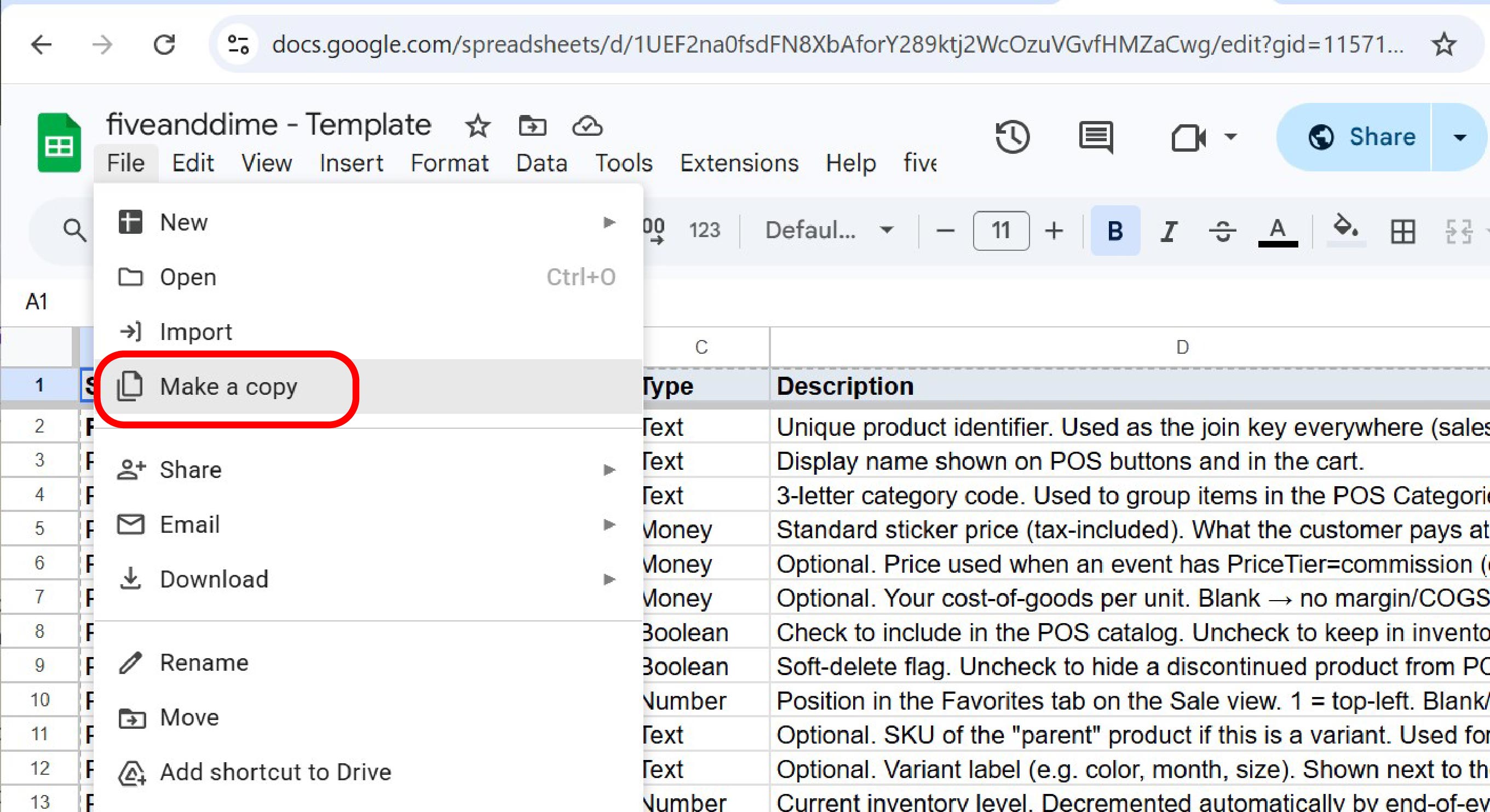
If Google shows a "Share it with the same people" checkbox, leave it unchecked. Your copy should be private to you.
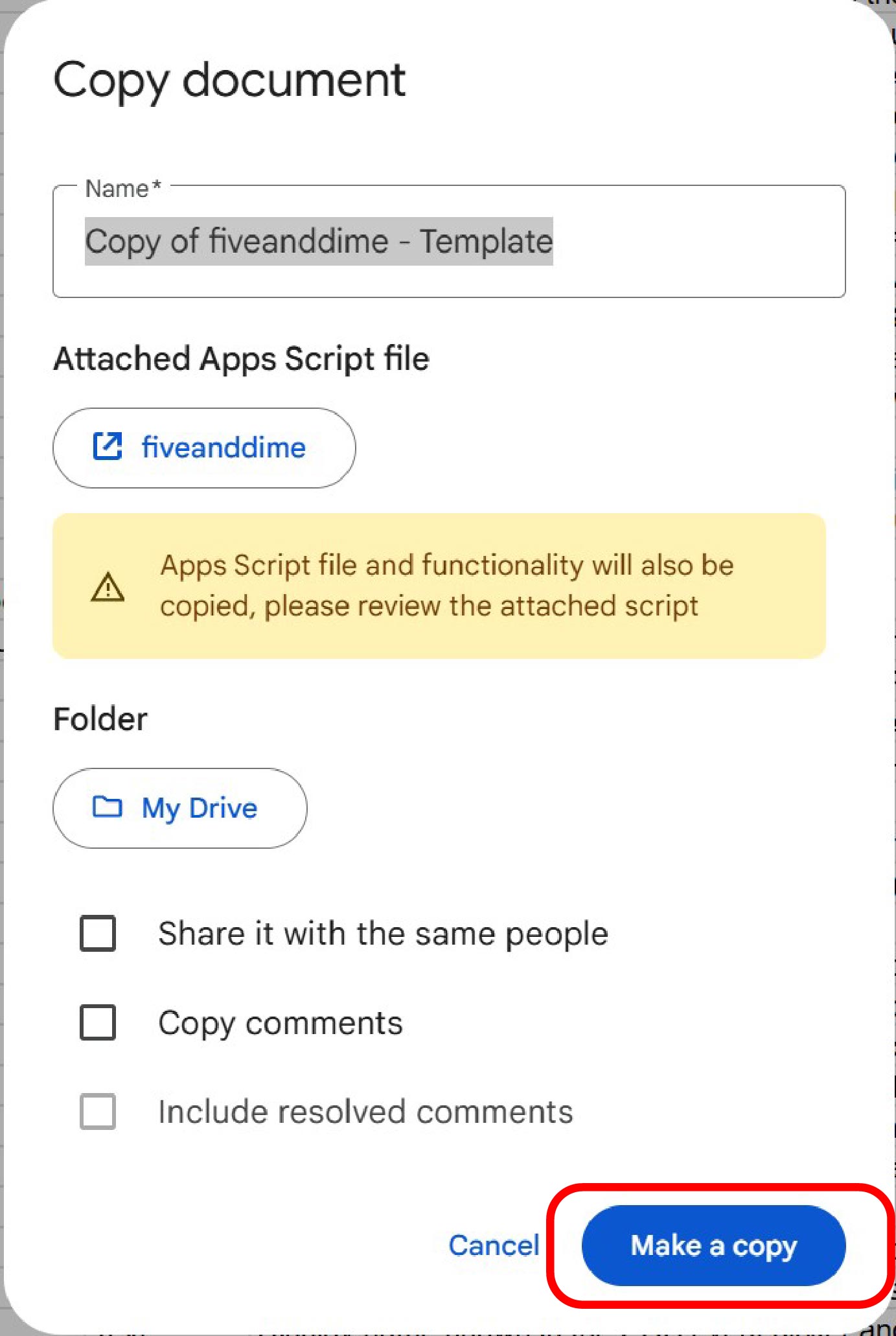
Rename it and pick a folder
Once the copy opens, rename it to something memorable like "My Wood Shop POS" or "Booth Sales 2026". Click the title at the top of the sheet to rename. Move it to a Drive folder you'll remember (optional, but tidier).
You'll see several tabs along the bottom: Products_Master, Events, Settings, Help, etc. Don't edit them yet. First we'll wire up the backend in Step 2, then you'll come back to add your real products.