Pull your data and run a test sale
Final step. The app pulls your products and events from your spreadsheet into its local cache, then you ring a sale to confirm everything works end to end.
Pull from backend
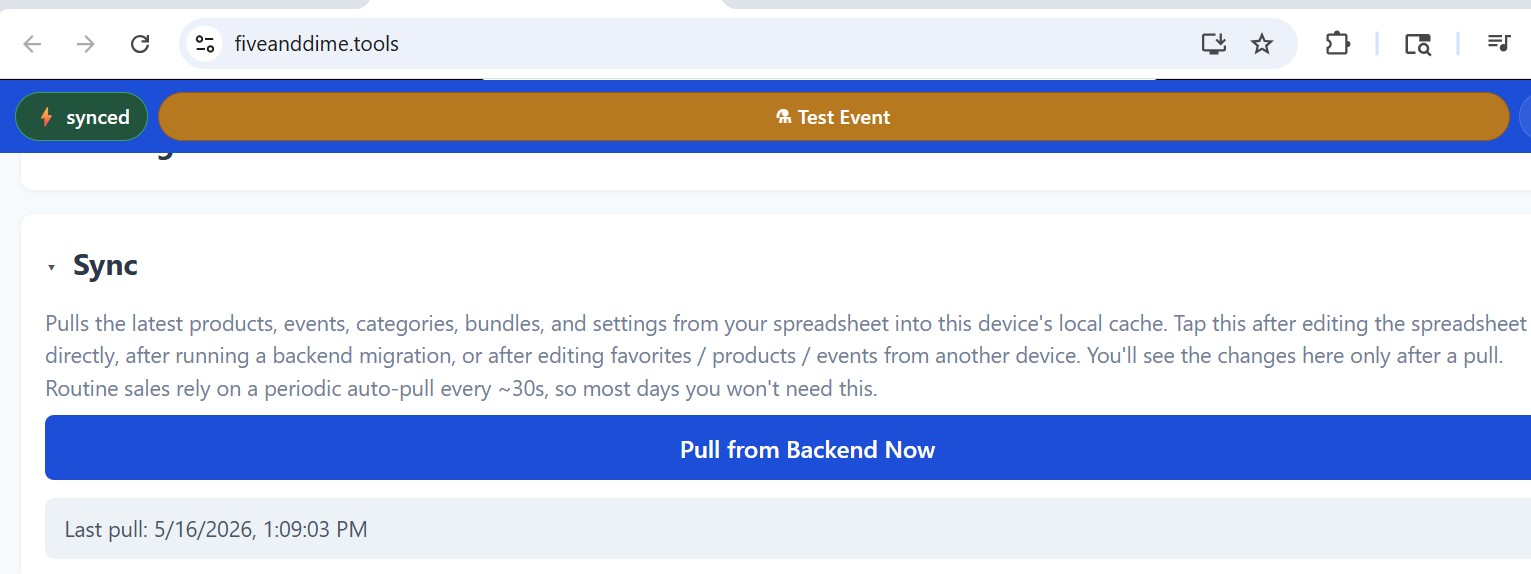
In Settings, tap Pull from Backend Now. This reads your Google Sheet and copies your products, events, categories, and other reference data onto the device so it can run fast and work offline. It usually takes 10–20 seconds. You'll see a confirmation message when it's done.
Pick the test event
The template comes with a Test Event already set up so you can practice ringing sales without polluting real data. Tap the event chip at the top of the screen (says "No event" or whatever event is selected) and pick Test Event.
Test events show a small yellow banner so you can tell at a glance that you're not on a real event. They also refuse end-of-event inventory posting, so you can practice without your stock counts being affected.
Ring a test sale
Tap the Sale tab at the bottom-left. You'll see the sample products from the template (door signs, coasters, earrings). Tap one or two to add to your cart. Pick a payment method (Cash / Card / Venmo). Tap Complete sale. The sale records in your spreadsheet within a few seconds.
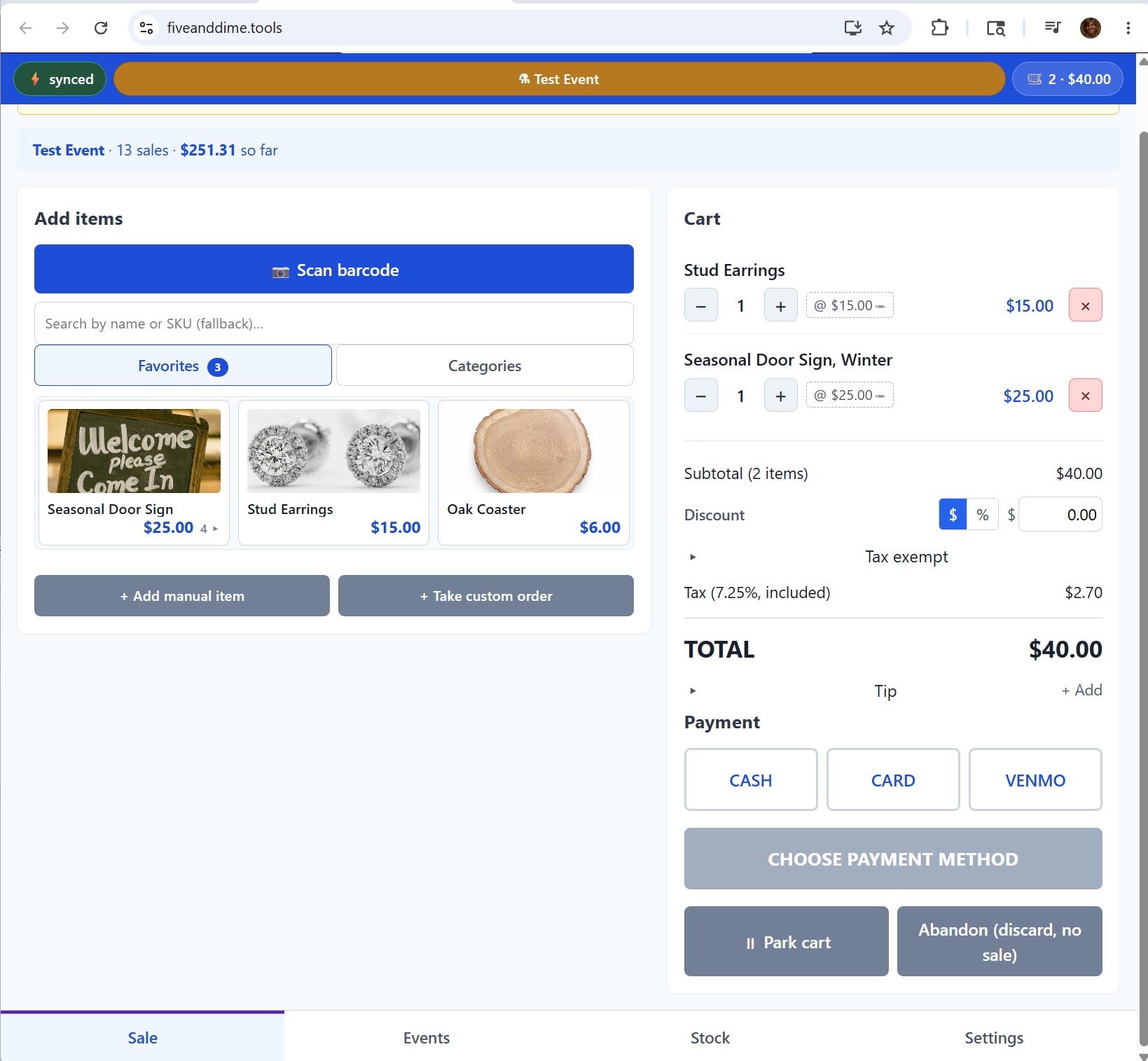
Switch to the Events tab to see your test sale (the Events tab is where you review what was sold at the currently selected event). Then open your spreadsheet (in another browser tab) and check the Sales sheet. Your sale should appear there too. That's the round trip working end to end.
If the pending counter in the top strip ever shows items, those sales live on your device only, not yet on the spreadsheet. Make sure your phone has signal so the queue can drain before you walk away from the event, or at minimum within a day or two. Don't leave the app closed for a week with pending items: phones can evict an app's local storage after long idle periods, and you'd lose those un-synced sales.
You're ready to start adding your real products and events.
Bug fixes and new features land in your install automatically. You don't have to download anything, reinstall, or paste any code. The next time you use a menu item or open the app, you're on the latest version.
The only exception is when an update needs a new Google permission you haven't granted yet (rare). You'll get an email with a short paste-this recipe when that happens.
The Pull from Backend Now button in Settings is unrelated: it refreshes your data (products, events, settings you've edited in the sheet) on the device, not the app's code.