Step 3 of 5
Install the app on your device
fiveanddime is a website that installs like a real app. Google calls this a Progressive Web App, or PWA. It runs from your home screen, works offline, and doesn't go through any app store. Two clicks per device.
3.1
Open the app website on your device
On the device you'll use at the booth, open Chrome (Android, Windows, Mac), Safari (iPhone, iPad, Mac), or Edge (Windows) and go to:
https://fiveanddime.tools
You'll see the POS load, but it can't do anything yet because we haven't given it your backend URL. That's Step 4. First, let's install it so it lives on your home screen.
3.2
Add to home screen
The exact wording differs by browser, but it's always the same idea: install this site as an app.
- iPhone / iPad (Safari): tap the share icon (square with an up arrow) → Add to Home Screen.
- Android (Chrome): tap the three-dot menu → Install app or Add to Home screen.
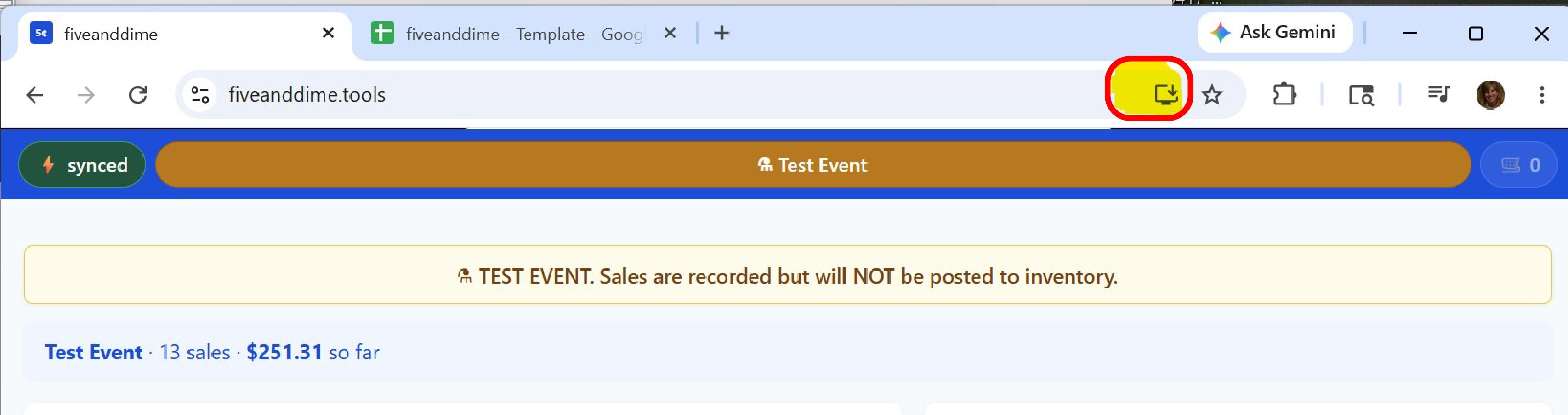
- Mac/Windows (Chrome / Edge): look for an install icon at the right of the address bar (looks like a monitor with a down-arrow), or use the three-dot menu → Install fiveanddime.
Why install it as an app?
Once installed, fiveanddime runs full-screen with no browser bars (more usable thumb space at the booth) and works offline (writes queue and sync when you're back online). Same site, just feels like a real app, because it is one.
Checkpoint
The fiveanddime icon now lives on your home screen (or app drawer). Tapping it opens the POS as if it were a real app: full-screen, no browser bars.