Step 4 of 5
Validate your license
Paste your license key into the app and tap Validate. The app fetches your backend connection automatically — no URL pasting required.
4.1
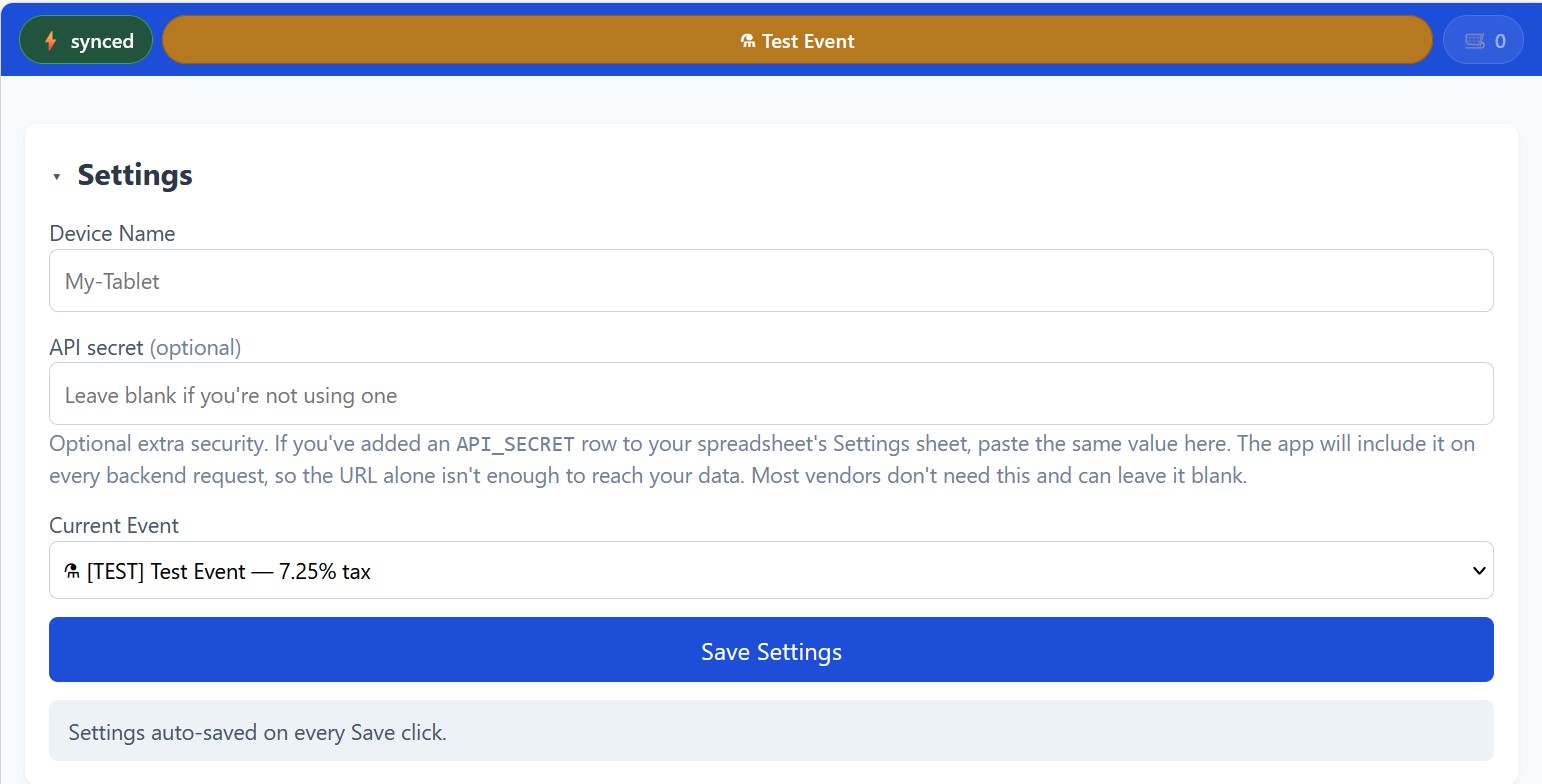
Open Settings in the app
Open fiveanddime (the icon you just added to your home screen). Tap the Settings tab at the bottom. You'll see several collapsed sections; tap the Settings heading at the top to expand it.
4.2
Paste your license key and validate
Scroll down to the License section and tap to expand. Paste your license key (from the welcome email; looks like FD-XXXX-XXXX-XXXX) into the field. Tap Save, then Validate license.
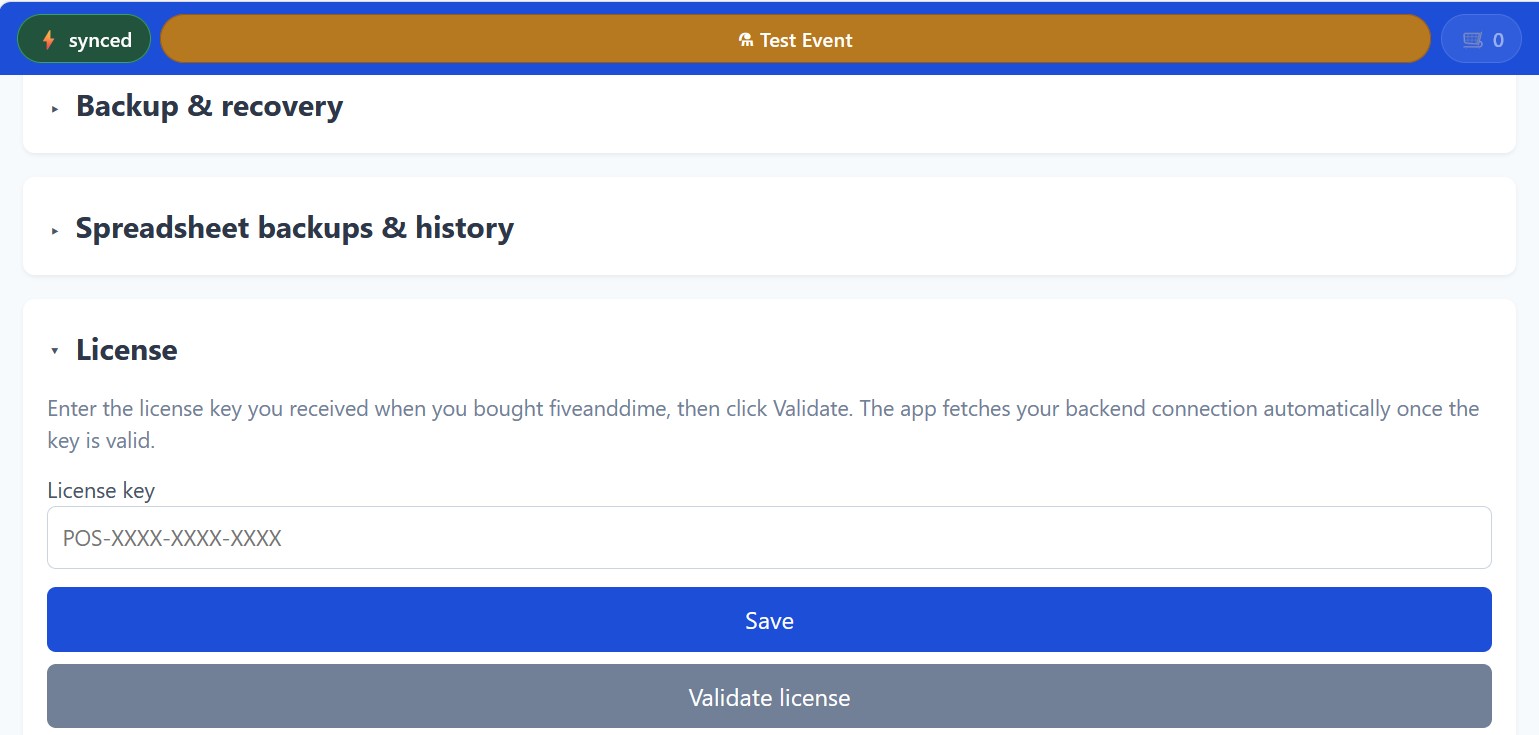
You should see a green ✓ Valid confirmation with your name and a fingerprint. That confirms your license is recognized and your backend is wired up.
If the license shows "blocked" or "could not reach licensing service"
"Blocked" usually means a typo or stray space in the key. Re-paste carefully. "Could not reach" means the licensing service is briefly unavailable; the app falls back to your last validated config for up to 7 days, so you can keep working. Reconnect when you can and tap Validate license again.
Checkpoint
Your license is validated. The app and your backend are now wired together. Last step: pull the data and try a sale.